



Nothing kills momentum faster than a silent conference room. You’re ready to present, the host is waiting, and half your team is stuck in a digital lobby or staring at a frozen screen. These participant connection issues are more than just annoying; they cost businesses thousands of dollars in lost productivity every year. Whether you are using Zoom, Microsoft Teams, Webex, or a traditional phone bridge, the frustration is universal.
The good news? Most of these problems aren’t mysterious glitches. They are predictable failures in how data moves from your device to the server and back. By understanding the layers involved-network, endpoint, and platform configuration-you can stop guessing and start fixing. This guide breaks down why people drop off calls and gives you concrete steps to keep everyone connected.
Why Do People Drop Off Calls? The Root Causes
To fix a problem, you first need to know where it’s breaking. Conference calling relies on three main pillars: signaling (the handshake that says "hello"), media (the actual audio/video stream), and the endpoint (your computer or phone). When one fails, the call suffers.
- Join Failures: The participant clicks the link but gets an error like "Meeting ID not found" or sits in a lobby forever. This is usually a policy or authentication issue, not a network one.
- Signaling Timeouts: The screen spins for 30 seconds then disconnects. This happens when firewalls block the initial connection request before the media even starts.
- Media Quality Drops: The person joins, but their audio is robotic, delayed, or cuts out completely. This is almost always a bandwidth or latency issue.
- Mid-Session Disconnects: A participant vanishes halfway through. This often points to unstable Wi-Fi, power-saving modes on mobile devices, or ISP throttling.
Understanding which category your issue falls into saves hours of troubleshooting. If everyone can join but the audio is bad, don’t waste time checking passwords. Check the internet speed instead.
The Network Bottleneck: Latency, Jitter, and Packet Loss
Your home internet might be fast enough to stream Netflix, but streaming video is different from real-time communication. Video conferencing requires low latency and stable connections, not just high download speeds.
Here are the critical metrics that determine call quality:
| Metric | Good Quality | Poor Quality | Impact on Call |
|---|---|---|---|
| Latency (One-way) | < 150 ms | > 400 ms | Causes overlapping speech and awkward pauses |
| Jitter | < 30 ms | > 50 ms | Results in choppy, robotic audio |
| Packet Loss | < 1% | > 3% | Causes gaps in audio and pixelated video |
| Bandwidth (Upstream) | > 1.5 Mbps per HD stream | < 500 kbps | Video freezes or drops to lowest resolution |
Most people check their download speed, but upload speed is what matters most when you are sending your voice and video to others. If you are on a shared household Wi-Fi network with someone downloading large files or gaming, your upload bandwidth gets squeezed. This leads to packet loss, which makes your voice sound like you are talking through a tin can.
Pro Tip: If possible, plug your computer directly into the router via an Ethernet cable. Wi-Fi is convenient but inherently unstable due to interference from walls, microwaves, and neighboring networks. A wired connection can reduce jitter by up to 50%.
Endpoint Errors: It’s Not Always the Internet
Sometimes the network is perfect, but the device is fighting back. Endpoint misconfiguration is a leading cause of "I can hear you, but you can’t hear me" scenarios.
Microphone Permissions and Mutes
Modern operating systems like Windows 10/11 and macOS have strict privacy controls. If your browser or app doesn’t have permission to access the microphone, the call will connect, but no audio will send. Check your system settings, not just the app settings. Also, look for the physical mute button on headsets; many users accidentally toggle this without realizing it.
Wrong Audio Device Selected
If you have multiple monitors, webcams, or Bluetooth headphones, your computer might be trying to use a disconnected device as the default input. In Zoom or Teams, click the arrow next to the microphone icon and verify that the correct device is selected. Switching to a different device often forces the app to re-establish the audio stream, clearing minor glitches.
Power Saving Modes
On laptops and mobile phones, aggressive power-saving features can throttle background apps. If you switch tabs on your phone during a call, iOS or Android might pause the VoIP service to save battery, causing a disconnect. Disable "Low Power Mode" during important meetings.

Platform-Specific Hurdles: Lobbies, Licenses, and Limits
Different platforms handle connections differently. Understanding these quirks helps you avoid common pitfalls.
Microsoft Teams and the Lobby Trap
In Teams, if a participant stays in the lobby, it’s rarely a network issue. It’s usually because the host hasn’t admitted them, or the guest access policies are too restrictive. Admins can set policies that require external users to be pre-approved. If you are joining as a guest, ensure you are using the correct link and that the organizer has enabled external access in the Teams Admin Center.
Zoom Meeting Limits
Free Zoom accounts have a 40-minute limit for meetings with three or more participants. When the timer hits zero, all participants are dropped instantly. This isn’t a bug; it’s a business model. Paid plans lift this cap but may still have participant limits (e.g., 100 for Basic, 500+ for Enterprise). If you hit the limit, new users get a "Meeting Full" error.
Ad-Hoc 3-Way Calling Failures
Trying to merge two calls into a conference on a mobile phone or softphone often fails. Many carriers and PBX systems (like RingCentral or 3CX) require specific licenses for multi-party conferencing. If you press "Merge" and the first caller drops, it’s likely a license limitation or a SIP trunk configuration error on the provider’s end. For reliable multi-party calls, use a dedicated meeting link rather than merging individual calls.
Step-by-Step Troubleshooting Checklist
When a participant reports connection issues, follow this logical flow to isolate the problem quickly.
- Test the Basics: Ask the user to run the platform’s built-in test. Zoom has a "Test Computer Audio" feature; Teams has "Make a test call." This confirms if the issue is global or specific to the meeting.
- Check Device Selection: Ensure the correct microphone and speakers are chosen in the app settings. Unplug and replug USB headsets to reset the driver.
- Restart the App: Close the application completely (check the system tray for lingering processes) and reopen it. This clears temporary cache errors.
- Switch Networks: If on Wi-Fi, try moving closer to the router or switching to cellular data (hotspot) to see if the issue persists. If cellular works, the home Wi-Fi is the culprit.
- Disable Bandwidth Hogs: Pause cloud backups (OneDrive, Dropbox), stop 4K video streaming, and close unnecessary browser tabs. Freeing up 5-10 Mbps of upstream bandwidth can dramatically improve stability.
- Update Software: Outdated versions of Zoom, Teams, or Webex may lack support for newer security protocols or codecs, causing connection timeouts.
Admin-Level Fixes for IT Professionals
If you manage communications for a team, individual fixes aren’t enough. You need systemic solutions.
Configure QoS (Quality of Service)
Mark VoIP traffic with higher priority on your network router. Use DSCP markings (e.g., EF for audio, AF41 for video) so that your firewall prioritizes call packets over email or web browsing. This prevents congestion during peak usage times.
Firewall Rules
Ensure your firewall allows outbound traffic on the ports required by your platform. For example, Microsoft Teams uses UDP ports 3478-3481 for STUN/TURN services. Blocking these ports forces traffic through less efficient proxy servers, increasing latency.
Leverage Analytics
Use tools like the Microsoft Teams Call Quality Dashboard (CQD) or Zoom’s admin reports. These dashboards show aggregate data on packet loss, jitter, and MOS (Mean Opinion Score) scores. If you see a spike in poor quality from a specific branch office, it’s likely a local network issue, not a platform outage.
Hybrid Meeting Challenges: Echo and Double Audio
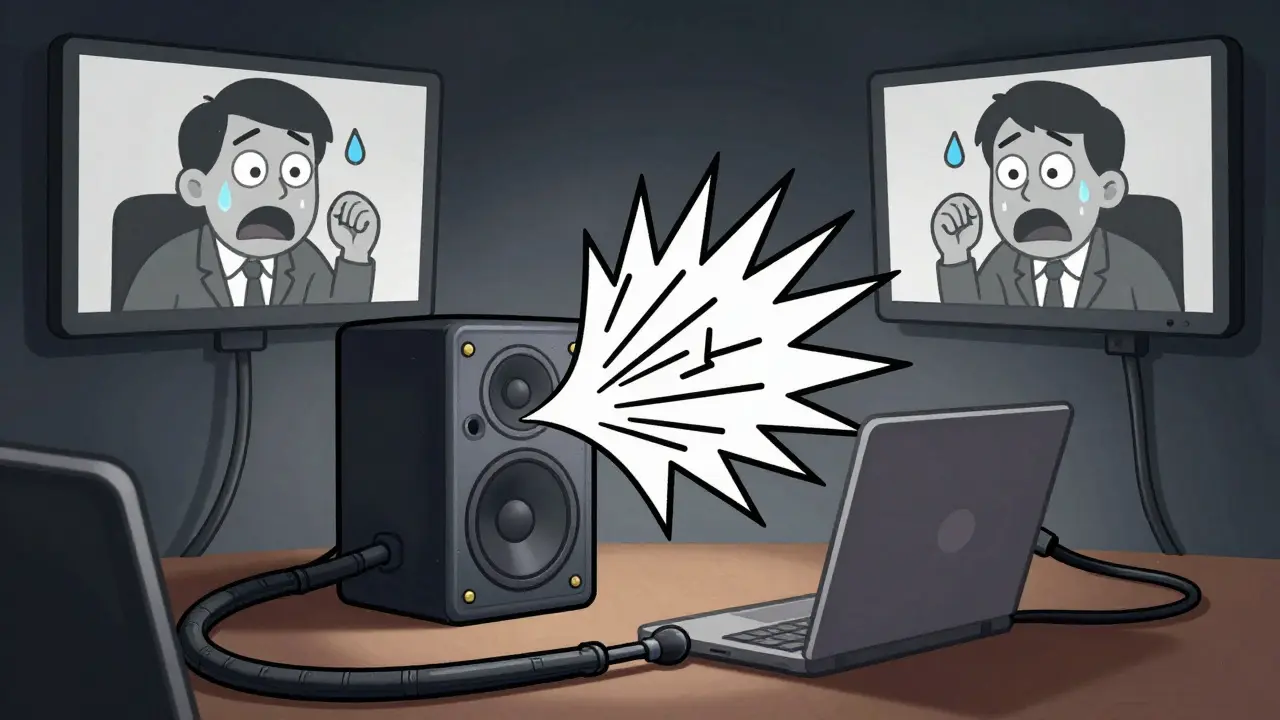
Hybrid meetings-where some people are in a room and others are remote-are prone to acoustic issues. If everyone in the room keeps their laptop microphones open while also using the room’s speaker system, you create feedback loops. The room mic picks up the sound from the speakers, sends it back to the remote participants, who hear it again, creating an echo.
The Fix: Only one device in the room should have its microphone active. Ideally, this is the dedicated room system (like a Zoom Rooms or Teams Room device). All personal laptops and phones in the room should be muted or joined in "audio-only" mode with the microphone disabled.
Why does my conference call keep dropping?
Frequent drops are usually caused by unstable Wi-Fi signals, high packet loss, or power-saving modes on mobile devices. Try connecting via Ethernet, disabling battery saver modes, and ensuring your router firmware is up to date.
How do I fix one-way audio on Zoom or Teams?
Check your microphone permissions in your OS settings. Ensure the correct input device is selected in the app. If using a headset, try unplugging and replugging it. Finally, test your audio using the platform's built-in diagnostic tool to rule out hardware failure.
What is the minimum internet speed for video conferencing?
For standard definition video, you need at least 600 kbps up/down. For HD (720p/1080p), aim for 1.5 Mbps to 3.0 Mbps upstream per participant. Low latency (<150ms) and low packet loss (<1%) are more critical than raw speed.
Why am I stuck in the Teams lobby?
You are likely an external guest or the host has enabled manual admission. Wait for the organizer to approve you, or check if your organization has restricted guest access. Ensure you are using the latest version of the Teams client.
Can firewall settings block conference calls?
Yes. Firewalls that block UDP ports (such as 3478-3481 for STUN/TURN) or restrict outbound HTTPS traffic to specific IP ranges can prevent signaling or media streams from establishing. Contact your IT admin to whitelist your conferencing platform's URLs and ports.








Amit Umarani
26 May 2026 at 00:20The grammar in this post is atrocious. You have run-on sentences that would make a high school teacher weep, and the formatting is inconsistent at best. I read through it trying to find some actual value but mostly just found errors.