



Imagine trying to install a phone app on five hundred computers. You’d be clicking "Next" until your fingers cramped, and half the users would still have the wrong version by lunchtime. That’s why IT teams don’t do it manually anymore. They use MSI packages combined with MDM policies or Group Policy Objects (GPO) to push VoIP softphones to every device automatically.
This approach turns a chaotic, manual process into a silent, background task. Whether you are running a traditional office with Active Directory or a remote workforce managed through the cloud, understanding how these tools work together is the key to keeping your team connected without breaking a sweat.
The Power of MSI Packaging for Enterprise Voice
Before we talk about pushing software, we need to understand the package itself. An MSI file is a Windows Installer package that contains all the files, registry settings, and instructions needed to install an application. Unlike a standard .exe installer that might ask you questions, an MSI can run silently in the background.
For VoIP softphones like Spoke or GoodAccess, this silence is crucial. Call center agents and sales reps need their phones ready the moment they log in. If the installation prompts them for permissions or asks where to save files, productivity drops. Vendors design these MSIs specifically for bulk deployment, often providing two variants: one for per-machine installation (available to all users on that PC) and one for per-user installation (only for specific employees).
The beauty of the MSI format is its consistency. Once you configure the installer correctly-perhaps using an MST transform file to pre-set server URLs or tenant IDs-you can deploy that exact same configuration to ten devices or ten thousand. There is no room for human error because there is no human involved in the actual install step.
On-Premises Deployment with Group Policy
If your organization relies on a traditional Windows Server environment with Active Directory, you likely already have the tools to deploy softphones. The method here is Group Policy Object (GPO) software installation.
Here is how the workflow typically looks for an admin:
- Create a Network Share: You place the VoIP softphone MSI file on a secure network folder. For example,
\\fileserver\\software\\softphone.msi. It is vital that the computer accounts in your domain have read access to this share. If they can't see the file, they can't install it. - Configure the GPO: Open the Group Policy Management Console. Create a new policy or edit an existing one. Navigate to Computer Configuration → Software Settings → Software installation.
- Add the Package: Right-click and select New → Package. Paste the full UNC path to your MSI file. Choose Assigned so the software installs automatically when the computer starts, before the user even logs in.
- Link and Wait: Link this policy to the Organizational Unit (OU) containing the target computers. Restart the machines. The softphone installs quietly in the background.
A common pitfall here is timing. In large environments, hundreds of PCs might boot at once, overwhelming the domain controller or the file server. Some admins increase the startup policy processing wait time to 120 seconds to ensure the system has enough time to fetch and install the package reliably. If a deployment seems stuck, running gpupdate /force on a client machine followed by a reboot is the standard troubleshooting step.

Cloud-First Deployment with MDM and Intune
Not every company keeps its servers in the basement. Many organizations manage devices via the cloud using Mobile Device Management (MDM) platforms like Microsoft Intune. This is especially true for remote workers or companies using modern workplace strategies.
Since Windows 10 version 1511, Microsoft has supported deploying MSI packages directly through MDM. This means you don’t need a local file server or a direct connection to an on-premises domain controller during the install phase. The MSI is uploaded to the Intune service, which then pushes it to the device over the internet.
The steps in Intune are straightforward:
- Go to Apps → Add Apps and select Windows Installer through MDM (*.msi).
- Upload the MSI file from your local machine. Intune analyzes it and extracts metadata like the name and architecture.
- Assign the app to a device group. For a softphone, you might create a group called "Sales Team Laptops" or "Call Center Workstations."
- Set the deployment type to Required Install with a deadline of "As soon as possible."
When the targeted device checks in with Intune, it downloads and installs the softphone silently. This method abstracts away the complexity of network shares and DNS issues. However, it does require that the devices are enrolled in Intune and have an active internet connection during the initial sync.
Comparing GPO and MDM for Softphone Rollouts
| Feature | Group Policy (GPO) | MDM (Intune) |
|---|---|---|
| Infrastructure | Requires on-premises Active Directory and file shares | Cloud-based; no local file servers needed |
| Network Dependency | Devices must reach the internal LAN/DNS | Devices need internet access to download from Intune |
| Targeting | Based on OUs and Security Groups | Based on Azure AD Device Groups |
| Best For | Traditional offices, fixed workstations | Remote workers, hybrid environments, BYOD |
| Update Management | Replace MSI on share; re-link GPO | Upload new MSI version; assign to same group |
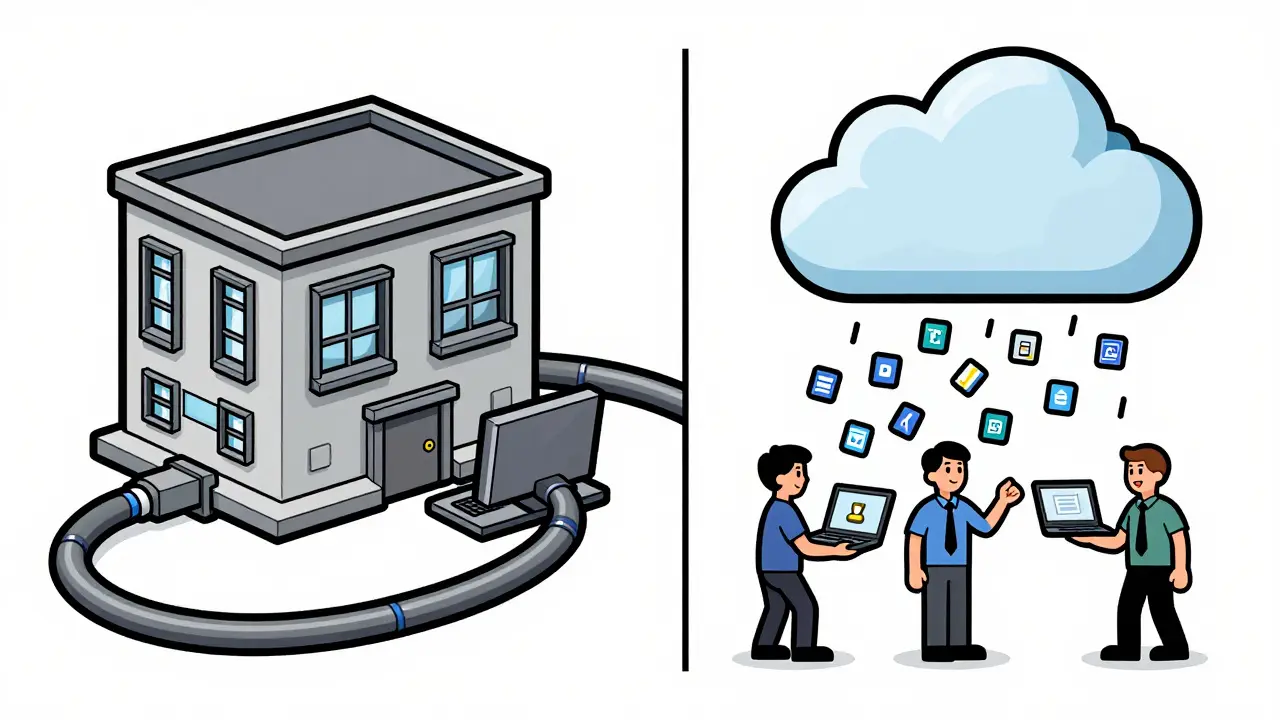
The choice often comes down to where your users are. If your call center is in a single building with wired connections, GPO is fast and reliable. If your sales team is traveling globally, MDM is the only viable option. Some mature organizations use both, deploying to domain-joined desktops via GPO and laptops via Intune.
Configuration and Scaling Considerations
Deploying the installer is only half the battle. The softphone needs to know where to register. This is where MST transform files come in handy. An MST file allows you to modify the behavior of an MSI without changing the original package. You can hardcode the SIP server address, proxy settings, or default ringtone into the MST. When the MSI installs, it applies these settings automatically.
For scaling, consider your update strategy. Will the softphone auto-update itself, or will IT push updates? Products like GoodAccess offer per-user update capabilities within the MSI, meaning the app can patch itself without admin intervention. Others rely entirely on the MDM/GPO to push a new version. If you choose the latter, plan your rollout rings carefully. Deploy to a small test group first, verify call quality and registration, then expand to larger groups. This prevents a bad update from taking down your entire communication infrastructure.
Also, keep an eye on bandwidth. Pushing an MSI to thousands of devices simultaneously can spike your network traffic. Staggering deployments or allowing installs during off-hours can mitigate this impact.
Troubleshooting Common Deployment Issues
Even with careful planning, things can go wrong. Here are the most common hurdles and how to clear them:
- Access Denied Errors: In GPO deployments, this almost always means the computer account doesn't have read permission on the network share hosting the MSI. Check the share permissions and NTFS permissions.
- Stalled Installs: If the softphone isn't appearing after a reboot, check the event logs on the client. Look for errors related to Group Policy processing or Intune agent failures. A simple
gpupdate /forceor restarting the Intune Agent service often resolves temporary glitches. - Wrong Architecture: Ensure you are deploying the 64-bit MSI to 64-bit systems. Mixing up architectures can cause silent failures or performance issues.
- Conflict with Existing Versions: If users already have an older version installed, the new MSI might fail if it doesn't include upgrade codes. Test upgrades in a sandbox environment before rolling out to production.
By leveraging MSI packages and policy-driven deployment, you remove the friction from getting your team online. Whether through the tried-and-true methods of Group Policy or the flexible reach of MDM, the goal remains the same: a seamless, silent installation that just works.
Can I deploy a VoIP softphone to Mac devices using MSI?
No, MSI is a Microsoft-specific format for Windows. For macOS, you would typically use PKG installers or mobileconfig profiles deployed via MDM solutions like Jamf or Intune's macOS management features.
What is the difference between Assigned and Published in Group Policy?
Assigned software is installed automatically for all users or the computer when they log on/start up. Published software appears in the Control Panel for users to install manually. For VoIP softphones, you almost always want Assigned to ensure everyone has the tool ready immediately.
Do I need to restart the computer after MSI deployment?
In GPO deployments, the installation happens at startup, so a reboot is part of the process. In Intune, the device may prompt for a restart if required by the installer, but many modern softphones can install and run without forcing an immediate reboot, minimizing downtime.
How do I handle softphone updates at scale?
You can either rely on the softphone's built-in auto-updater (if configured via MST/MDM) or push a new MSI version through your GPO or Intune assignment. Using MDM makes updating easier as you simply upload the new package and assign it to the same group.
Is it better to deploy per-user or per-machine?
Per-machine is best for shared workstations like call centers where any employee should have the phone available. Per-user is better for personal laptops where only specific individuals need the VoIP client, saving disk space and resources for others.








michael rome
5 Jun 2026 at 05:46It is genuinely exhausting to think about the manual labor involved in installing software on hundreds of machines without automation. The relief that comes from setting up a silent MSI deployment through Group Policy or Intune is immeasurable for any IT professional trying to maintain their sanity. We must respect the boundaries of our time and energy by letting these tools do the heavy lifting so we can focus on more meaningful interactions with our teams rather than clicking next repeatedly.