



There is nothing more frustrating than hearing your own voice bounce back at you during a call. You pause, wait for the silence, and then-*hello?*-your words return like an unwanted guest. In the world of Voice over IP (VoIP) is a technology that allows voice calls to be made over the internet rather than traditional phone lines., this phenomenon is known as echo or feedback. It breaks concentration, makes conversations awkward, and can even cause you to miss critical information.
But here is the good news: echo is rarely a mystery. It is usually a symptom of a specific, fixable problem in your audio path, network, or hardware. Whether you are using a desk phone, a laptop softphone, or a mobile app, understanding where the sound is leaking will help you stop it dead in its tracks.
The Two Main Culprits: Acoustic vs. Electrical Echo
To fix echo, you first need to identify which type you are dealing with. There are two primary categories, and they require different solutions.
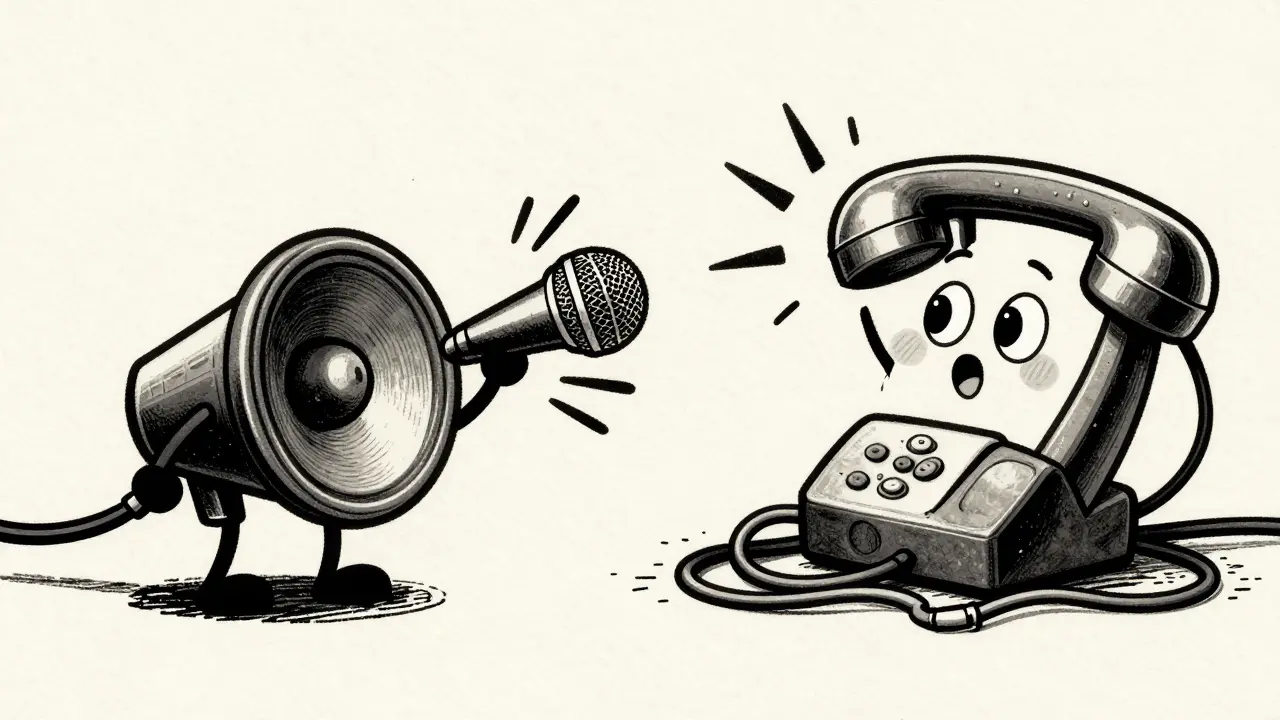
Acoustic Echo is echo caused by sound from a speaker being picked up by a nearby microphone. This happens when the far end of the call plays your voice through their speakers, and their microphone picks it up again, sending it back to you. If there is enough delay (usually more than 50 milliseconds), your brain recognizes it as your own voice, creating that annoying lagged repetition. This is common on speakerphones, laptops with poor microphone isolation, and mobile phones in loud environments.
Electrical Echo is echo caused by impedance mismatches in analog circuits or wiring. This occurs when part of the signal reflects back into the receive path due to poor quality wiring, faulty adapters, or issues at the carrier’s gateway. Unlike acoustic echo, electrical echo often persists regardless of whether you use a headset or a handset, because the reflection happens within the circuit itself before the digital processing begins.
Quick Diagnostic Tests to Identify the Source
Before you start changing settings or replacing equipment, run these simple tests to isolate the problem. These steps follow industry-standard troubleshooting methodologies used by telecom professionals.
- The Hand Test: Ask the other person on the call to cover their speaker with their hand. If the echo stops or significantly reduces, you have an acoustic echo issue on their end. Their microphone is picking up the sound from their speaker.
- The Headset Swap: Plug in a wired headset. If the echo disappears, the issue was likely acoustic feedback from your device’s internal speakers and microphones. If the echo remains, the problem might be electrical or network-related.
- The Recording Check: Record a voicemail greeting or use a PBX recording feature. Play it back. If the recording has no echo, but live calls do, the problem lies outside your system-likely with the carrier, the remote party’s device, or network latency.
- The Cable Isolation: For desk phones, connect the phone directly to the Analog Telephone Adapter (ATA) using a short, high-quality RJ-11 cable. Remove any splitters, extension cords, or long runs of untwisted wire. If the echo vanishes, your local wiring is the culprit.
Fixing Acoustic Echo and Feedback
Acoustic echo is the most common form of feedback in modern VoIP setups, especially with the rise of remote work and mobile devices. Here is how to eliminate it.
1. Optimize Device Placement and Volume
Physics plays a big role here. The closer your microphone is to your speaker, the stronger the feedback loop. Keep your desktop speakers away from your microphone. On laptops, avoid placing the device on soft surfaces that can vibrate and transmit sound. Lower the speaker volume; many users crank up the volume unnecessarily, which forces the microphone to pick up more ambient sound.
2. Use Noise-Canceling Headsets
A quality noise-canceling headset physically separates the audio output (earpieces) from the input (microphone). This breaks the acoustic path entirely. Look for headsets with dedicated echo cancellation features built into the hardware, not just software promises.
3. Adjust Software Audio Settings
Most operating systems and VoIP apps include built-in echo cancellation algorithms. Ensure these are enabled. In Windows, go to Sound Settings > Input/Output and look for “Echo Cancellation” or “Acoustic Echo Suppression.” On macOS, check your Voice Memos or FaceTime settings. For softphones like Zoom, Microsoft Teams, or FreePBX clients, verify that the application has permission to access the microphone and that auto-gain control is active.
4. Manage Mobile Speaker Mode
Mobile phones often struggle with echo in speaker mode because multiple microphones may remain active. If you notice echo only when using speakerphone, switch to headphones or hold the phone to your ear. Some mobile OS versions have bugs where secondary microphones aren’t muted correctly during VoIP calls; updating your phone’s firmware can resolve this.
Resolving Electrical Echo and Wiring Issues
If acoustic fixes don’t work, the problem is likely electrical. This involves the physical connection between your analog devices and the digital VoIP network.
1. Replace Low-Quality Splitters and Cables
Cheap Y-splitters and long, untwisted phone wires create impedance mismatches. These mismatches cause part of the signal to reflect back toward the source. Replace all extension cables with short, shielded RJ-11 cables. Avoid daisy-chaining devices through low-cost adapters.
2. Check Your ATA and Gateway Configuration
Your Analog Telephone Adapter (ATA) or VoIP gateway should have a line echo canceller enabled. Log into your gateway’s admin panel and ensure that Line Echo Cancellation is a feature that removes echo caused by analog-to-digital conversion mismatches. is turned on. Also, check the “loss plan” or signal level settings. If the levels are too high or too low, the canceller may fail to recognize and remove the echo. Consult your provider’s documentation for recommended values.
3. Eliminate Electromagnetic Interference (EMI)
Place your VoIP phone and ATA away from power strips, computer towers, and monitors. EMI can induce noise into the analog lines, which can manifest as distortion or echo-like artifacts. Keep phone cables separate from power cables to prevent crosstalk.
Network Factors That Worsen Echo
While network issues rarely create echo from scratch, they make existing echo much worse. High latency delays the return signal, giving your brain time to distinguish it from your original speech. Jitter causes packets to arrive out of order, disrupting echo cancellation algorithms.
- Check Bandwidth: Run a speed test. VoIP requires minimal bandwidth per call (about 80-100 kbps for G.711 codec), but if your connection is saturated, packets drop and delay increases. Aim for a stable upload and download speed well above your total call volume needs.
- Use Wired Connections: Wi-Fi introduces variable latency. For consistent call quality, connect your VoIP phone or computer via Ethernet.
- Monitor Latency: If one-way latency exceeds 150 ms, echo becomes highly perceptible. International calls or satellite links often suffer from this. If you cannot reduce latency, consider using codecs designed for high-latency networks, though this may impact audio clarity.
| Echo Type | Primary Cause | Key Symptom | Best Solution |
|---|---|---|---|
| Acoustic Echo | Speaker sound enters microphone | Stops when covering speaker or using headset | Use headsets, lower volume, enable AEC |
| Electrical Echo | Impedance mismatch in wiring/gateway | Persists across all devices/headsets | Replace cables, configure ATA echo canceller |
| Network-Induced Echo | High latency (>150ms) or jitter | Echo noticeable only on slow/international calls | Upgrade bandwidth, use wired Ethernet, QoS |
When to Contact Your Provider
If you have checked your hardware, wiring, and local network, and the echo persists-especially on calls to specific destinations-the issue may lie with your VoIP provider or the PSTN gateway. Carriers sometimes use lower-quality termination routes for certain countries, which lack robust echo cancellation. Contact your provider’s support team and provide details about when the echo occurs. They can adjust routing or enable enhanced echo suppression on their end.
Preventing Future Echo Issues
Treat echo prevention as part of your regular IT maintenance. Update firmware on all VoIP phones and gateways regularly, as updates often include improved audio processing algorithms. Train employees to use headsets instead of speakerphones whenever possible. Inspect cables and connectors periodically for wear. By addressing these factors proactively, you can maintain clear, professional call quality without the distraction of echo.
What is the difference between VoIP echo and feedback?
Echo is a delayed repetition of your voice, usually caused by acoustic leakage or electrical reflections. Feedback is a self-sustaining loop that creates a high-pitched screeching or howling sound, typically occurring when a microphone is too close to a speaker and the gain is set too high.
Why does my VoIP echo happen only on some calls?
If echo occurs only on specific calls, the issue is likely on the remote party’s end (their device or network) or with the carrier route used for that destination. If it happens on all calls, the problem is probably with your local hardware, wiring, or configuration.
Can bad internet cause VoIP echo?
Poor internet doesn’t create echo directly, but high latency and jitter make existing echo much more noticeable. Delays allow your brain to distinguish the returned sound from your original speech, turning subtle reflections into obvious echoes.
How do I fix echo on a laptop softphone?
Use a wired headset to separate audio input and output. Lower your speaker volume. Ensure your operating system’s echo cancellation is enabled. Close other applications that might be accessing the microphone simultaneously.
What is a line echo canceller in a VoIP gateway?
A line echo canceller is a feature in VoIP gateways and ATAs that detects and removes electrical echo caused by impedance mismatches in analog circuits. It must be enabled and correctly configured with appropriate signal levels to function effectively.







Write a comment