



Setting up a new office phone system shouldn't feel like solving a complex puzzle. Yet, for many IT managers and small business owners, configuring Yealink T-Series phones can be a source of frustration if you don't know the right levers to pull. Whether you are deploying a single handset for a receptionist or rolling out fifty units across a growing team, understanding the specific capabilities and configuration paths of these devices is critical for success.
Yealink has dominated the global SIP desktop phone market for years, holding approximately 26-29% market share in recent reports. This dominance isn't just about volume; it's about reliability and broad compatibility. The T-Series, which spans from entry-level models like the T31P to high-end executive touchscreens like the T58W, forms the backbone of many modern VoIP deployments. This guide breaks down exactly what these phones offer, how they differ, and how to configure them efficiently without getting lost in the web interface.
Understanding the T-Series Lineup
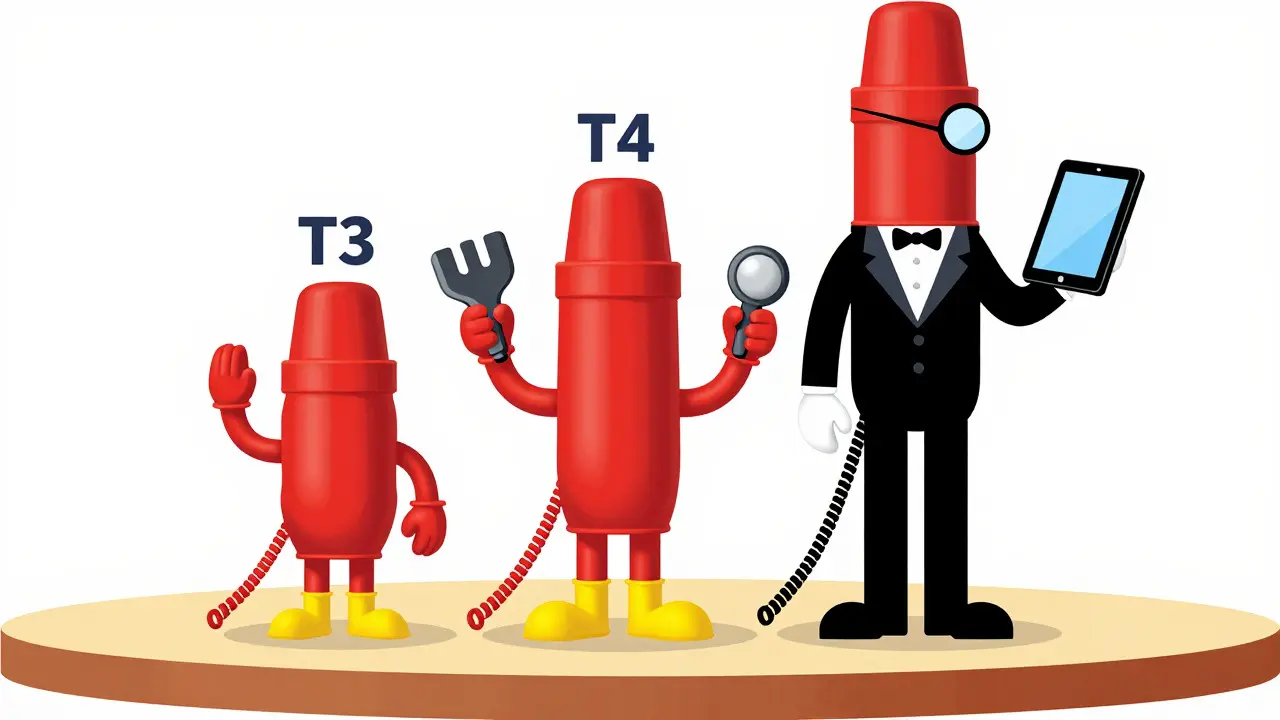
Not all Yealink T-Series phones are created equal. The lineup is segmented by user role and required feature set. Knowing which tier fits your needs prevents overspending on unnecessary features or underbuying into limitations.
- T3 Series (Entry-Level): Models like the SIP-T31P and SIP-T33G are designed for general staff. They offer HD voice, PoE support, and basic multi-line capabilities. The T33G, for instance, features a color display and Gigabit Ethernet passthrough but lacks built-in Wi-Fi or Bluetooth, relying on RJ9 headset ports instead.
- T4 Series (Mid-Range/Multi-Line): Phones like the SIP-T46U and T48U target supervisors and high-traffic desks. They include dual USB ports, larger screens, and support for expansion modules. The T46U supports up to 16 SIP accounts and offers advanced audio processing with Optima HD Voice.
- T5 Series (Smart Business): These are Android-powered devices with touchscreens, such as the T57W and T58W. They support video calling, apps, and integrated Wi-Fi/Bluetooth, making them ideal for executives who need collaboration tools beyond simple voice.
| Model | Screen Size | SIP Accounts | Connectivity | Best For |
|---|---|---|---|---|
| SIP-T33G | 2.4" Color LCD | 4 | Gigabit Ethernet, PoE | General Staff |
| SIP-T46U | 4.3" TFT | 16 | Dual USB, Gigabit Ethernet, PoE | Team Leads/Reception |
| SIP-T57W | 5.0" Touchscreen | 12 | Wi-Fi, Bluetooth, PoE | Professionals |
| SIP-T58W | 7.0" Touchscreen | 12 | Wi-Fi, Bluetooth, Camera | Executives/Video |
Core Features That Matter
When evaluating these devices, look beyond the spec sheet and focus on operational capabilities that impact daily use. Audio quality is a primary differentiator. Higher-tier models utilize Optima HD Voice and Acoustic Shield technology, which suppresses background noise significantly better than standard G.711 codecs. If your office environment is noisy, this feature alone can justify moving from a T3 model to a T4 or T5.
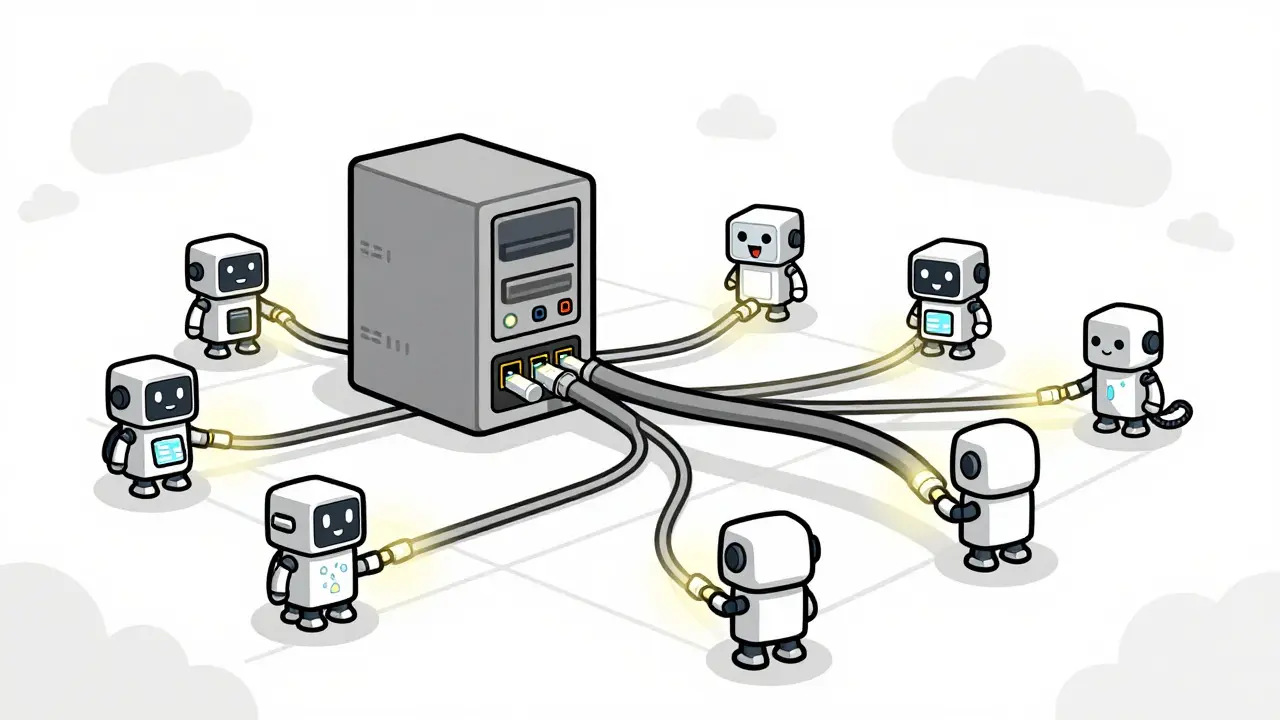
Provisioning flexibility is another key attribute. Yealink phones support zero-touch provisioning, allowing them to fetch configurations automatically from a server upon boot. This is crucial for large deployments where manually entering credentials into each phone is impractical. Additionally, the phones are PBX-agnostic, meaning they work seamlessly with Asterisk, FreePBX, Cisco Call Manager, Microsoft Teams Direct Routing, and hosted services like 3CX or RingCentral.
Step-by-Step Configuration Guide
Configuring a Yealink phone can be done manually via the keypad or web interface, or automatically via provisioning. For most professional environments, automatic provisioning is preferred, but manual setup is necessary for troubleshooting or small-scale installs.
Manual Setup via Web Interface
- Find the IP Address: Connect the phone to your network. Press the 'Status' button on the phone to view its current IP address.
- Access Admin Page: Open a web browser on your computer and enter the phone's IP address. Log in using the default admin credentials (often 'admin' for both username and password, though this varies by firmware version).
- Configure Network Settings: Navigate to Settings → Network. Ensure DHCP is enabled unless you have a static IP scheme. Disable SIP ALG if you are experiencing one-way audio issues, a common pitfall on certain routers.
- Set Up SIP Account: Go to Settings → Account. Enter your SIP server address, extension number, authentication ID, and password. Save the settings.
- Test Connectivity: Restart the phone. It should register with your PBX. Make a test call to verify audio quality in both directions.
Zero-Touch Auto Provisioning
For fleets of phones, use the auto-provisioning feature. In the web interface, navigate to Settings → Auto Provision. Enter the URL of your provisioning server (e.g., a local FTP server or a cloud provider's endpoint). Select the provisioning mode: 'Power On' is standard, but 'Repeatedly' allows the phone to check for updates periodically. Once configured, click 'Auto Provision Now' to force an immediate sync. This reduces setup time per device from 15-30 minutes to under five minutes.
Common Pitfalls and Troubleshooting
Even with robust hardware, configuration errors can lead to frustrating issues. Here are the most common problems and their solutions.
- One-Way Audio: Often caused by SIP ALG being enabled on your router. Disable SIP ALG in your router's firewall settings. Alternatively, ensure QoS (Quality of Service) is configured to prioritize VoIP traffic.
- Firmware Update Failures: If a phone gets stuck during a firmware update, it may show a 'Permission Denied' error. To fix this, download the correct .rom file from Yealink's support site, place the phone and PC on an isolated network, and upload the file via the web interface's Firmware Update section.
- Registration Issues: If the phone fails to register, check the SIP server URL for typos. Verify that the port number (usually 5060) is open. For hosted providers, ensure the domain name is correct, not just the IP address.
Choosing the Right Model for Your Needs
Selecting the right phone depends on the user's role. For front-line staff who primarily make and receive calls, the SIP-T33G offers excellent value at around US$85-$150 depending on region. It handles four lines comfortably and has a clear color screen. However, if the user needs to connect a USB headset or record calls, step up to the T46U. Its dual USB ports allow simultaneous use of a Wi-Fi dongle and a USB headset, offering greater flexibility.
For executives or users who require video conferencing and app integration, the T5 series is the way to go. The T58W, with its 7-inch touchscreen and 1080p camera, functions as a standalone video endpoint, reducing the need for separate laptops for meetings. While more expensive, the productivity gain for frequent video callers often offsets the initial cost.
FAQs
Do Yealink T-Series phones work with Microsoft Teams?
Yes, but with caveats. Most T-Series phones work with Microsoft Teams via Direct Routing through a SIP trunk. However, for native Teams Phone experience with deep integration, Yealink recommends their MP-Series or Poly CCX-series phones. T-Series phones are best used as standard SIP endpoints within a hybrid environment.
What is the difference between T4 and T5 series phones?
The T4 series runs on Linux and focuses on voice performance, multi-line handling, and physical keys. The T5 series runs on Android, features touchscreens, and supports third-party apps and video calling. Choose T4 for pure voice efficiency and lower cost; choose T5 for collaboration and multimedia needs.
Can I use a USB headset with the Yealink T33G?
No, the T33G does not have USB ports. It only supports analog headsets via the RJ9 port. If you require USB headset compatibility, you need to upgrade to a T4 series model (like the T43U or T46U) or a T5 series model.
How do I reset a Yealink phone to factory defaults?
Navigate to Settings → System → Factory Reset in the web interface, or press and hold the * key while powering on the phone until prompted. Note that this will erase all custom configurations, including SIP accounts and provisioning settings.
Is PoE supported on all T-Series models?
Most T-Series models support IEEE 802.3af PoE, which allows power delivery over the Ethernet cable, eliminating the need for a separate power adapter. This is particularly useful for installations where outlets are scarce. Always verify the specific model's datasheet, as some very basic variants may differ.







Write a comment