



Imagine this: You are deep in a client email thread on Gmail. A colleague pings you on Slack to jump on a call. Instead of alt-tabbing to a separate softphone app or digging for your mobile phone, you hit "Call" right inside the email window. The call connects instantly. When it ends, the transcript lands in your inbox, and a follow-up meeting is scheduled in Google Calendar with one click. This isn't a futuristic fantasy; it's the daily reality for thousands of businesses using VoIP and Google Workspace integration.
If you're running a small-to-medium business that lives in Google's ecosystem, the friction between your communication tools is likely costing you time. Switching between apps breaks focus. But when you integrate internet-based voice services (VoIP) directly into Gmail and Calendar, you turn passive communication channels into active workflows. Whether you use native Google Voice or a third-party provider like RingCentral or Zoom Phone, understanding how these integrations work-and where they break-is critical for maintaining productivity.
The Core Value: Why Integrate VoIP with Workspace?
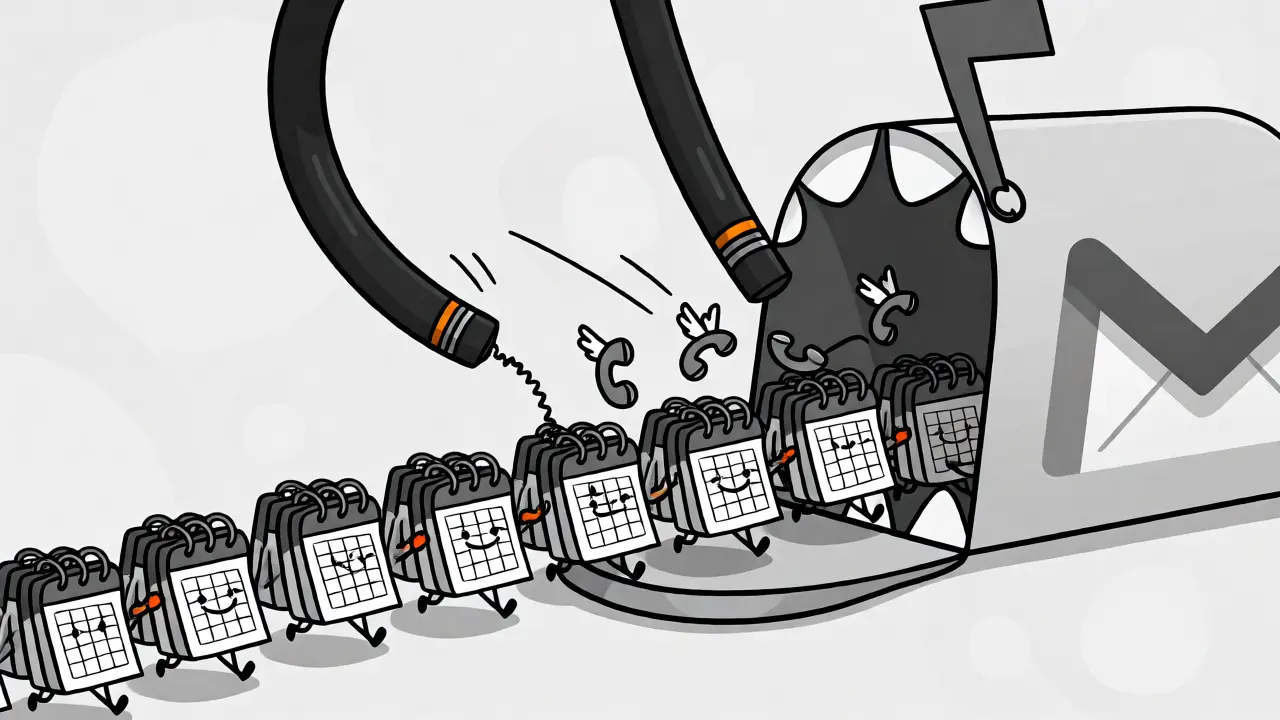
At its heart, integrating VoIP with Google Workspace solves a single problem: context switching. Every time you leave an application to check voicemail or dial a number, you lose cognitive momentum. By embedding telephony into Gmail and Calendar, you keep users in their primary workflow.
For teams already standardized on Google Workspace, the benefits are immediate:
- Unified Identity: One login handles email, documents, calls, and scheduling.
- Contextual Calling: Click-to-call buttons appear directly next to contact names in emails and calendar invites.
- Automated Logging: Call details, recordings, and transcripts can be automatically saved to threads or specific folders.
- Presence Awareness: Your phone status syncs with your Calendar availability, ensuring you aren't disturbed during focused work blocks.
This isn't just about convenience. It’s about data integrity. When calls happen inside the Workspace environment, they become part of the searchable history of your organization. You stop losing important conversations in disconnected silos.
Native Integration: How Google Voice Works with Gmail and Calendar
Google offers its own VoIP solution, Google Voice, which provides the deepest native integration. Unlike third-party apps that require add-ons, Google Voice is built into the infrastructure. If you have a paid Workspace plan with Voice access, the connection is seamless.
In Gmail, the integration manifests as a dedicated panel on the side of your screen. You can make calls, send texts, and view voicemails without leaving your inbox. Voicemail transcriptions arrive as email messages, complete with links to play the audio. This means your voicemail becomes searchable text, just like any other email.
Calendar integration is primarily about routing logic. Google Voice uses your Calendar settings to determine how to handle incoming calls. Two key features drive this behavior:
- Follow Working Hours: When enabled, calls outside your set working hours go straight to voicemail.
- Follow Out of Office: If you mark yourself as out-of-office in Calendar, calls are routed accordingly.
To set this up, administrators navigate to Voice Settings, select "Do Not Disturb," and enable the desired Calendar option. Note that your Calendar working hours must be configured first. This automation prevents unnecessary interruptions and ensures professional handling of after-hours inquiries.
Third-Party Integrations: Zoom Phone and RingCentral
Not every business wants to switch their entire phone system to Google Voice. Many prefer robust enterprise features found in providers like Zoom Phone or RingCentral. These vendors offer official Google Workspace Marketplace add-ons that mimic the native experience while retaining their advanced telephony capabilities.
Zoom Phone, for instance, allows users to make calls from Gmail and Calendar if they hold a valid license. The add-on displays recent call history and integrates contacts. However, unlike Google Voice, Zoom requires a separate subscription. The trade-off? Zoom often provides better global coverage and more sophisticated call center features.
RingCentral takes this further with deeper unified communications. Their Workspace integration supports not just calling, but also SMS and meeting scheduling directly from Gmail. With over 3,800 installations reported recently, it’s a popular choice for companies needing more than basic voice functionality. The setup involves installing the extension via the Marketplace and authenticating via OAuth. Once active, a dial pad appears in your Gmail sidebar, allowing you to manage communications without leaving the tab.
| Feature | Google Voice | Zoom Phone | RingCentral |
|---|---|---|---|
| Integration Type | Native / Built-in | Add-on Extension | Add-on Extension |
| Cost Structure | $10-$30/user/mo (add-on) | Separate License Required | Separate License Required ($20+) |
| Calendar Sync | Routing based on Availability | Click-to-call from Events | Schedule Calls/Meetings |
| Gmail Features | Calls, SMS, Voicemail Transcripts | Calls, History, Contacts | Calls, SMS, Meeting Scheduling |
| Best For | Small/Med Teams fully in Google | Hybrid Video/Voice Needs | Larger Orgs needing UCaaS |
Technical Architecture: APIs and Security
Behind the user-friendly interfaces lies a complex web of APIs. Google exposes REST APIs for both Calendar and Gmail, allowing developers to build custom integrations. For example, a developer can create a script that automatically creates a calendar event when a specific type of call ends, or logs call duration in a spreadsheet.
Security is paramount here. Because these integrations touch sensitive data-your emails and your schedule-Google enforces strict OAuth protocols. Administrators should always review requested scopes. Ideally, an add-on should request only the minimum permissions needed (e.g., read-only access to current message metadata rather than full mailbox access). Recent updates in 2025 and 2026 have tightened these rules, requiring granular consent for new add-ons. This reduces the risk of a malicious or poorly coded extension accessing more data than necessary.
Scalability is another technical consideration. Google imposes API quotas, such as 10,000 requests per minute per project for Calendar. High-volume systems polling for presence changes need to use incremental synchronization and caching to avoid hitting these limits. If you’re building a custom dashboard that shows live call status alongside calendar availability, efficient API usage is non-negotiable.
Common Pitfalls and Troubleshooting
Even with smooth integrations, things go wrong. Here are the most frequent issues admins encounter:
1. The "Ghost" Voicemail Problem Users report missing calls because "Follow Working Hours" was accidentally enabled. If your Calendar says you are unavailable, calls bypass your phone entirely. Always double-check your working hours configuration before assuming a network issue.
2. Number Recognition Failures Some third-party services (like two-factor authentication systems or banking portals) reject VoIP numbers. While Google Voice works well for general business, specific legacy systems may flag it as invalid. Test critical external connections early in deployment.
3. Emergency Calling Limitations This is crucial. VoIP emergency calling relies on internet connectivity and registered addresses. During power outages or internet failures, your ability to call 911 may be compromised compared to traditional landlines or cellular networks. Ensure all employees understand this limitation and know their registered service address.
4. Bandwidth Bottlenecks High-quality VoIP requires stable bandwidth. If your team experiences choppy audio during video conferences, check your network QoS (Quality of Service) settings. Prioritizing voice traffic packets can resolve latency issues that disrupt both calls and video meetings.

Implementation Checklist for Admins
Ready to deploy? Follow this streamlined process to ensure a smooth rollout:
- Audit Current Tools: Identify which departments rely most heavily on phone communication. Start there.
- Choose Your Path: Decide between native Google Voice for simplicity or a third-party add-on for advanced features.
- Configure Calendar First: Set accurate working hours and out-of-office templates for all users.
- Install and Authenticate: Add the VoIP extension via the Workspace Marketplace. Review OAuth scopes carefully.
- Port Numbers: Initiate number porting early; this can take days or weeks depending on the carrier.
- Test Emergency Services: Verify that emergency calls route correctly to the appropriate dispatch centers.
- User Training: Teach staff how to use click-to-call and how to interpret voicemail transcripts in Gmail.
Future Outlook: AI and Automation
The integration of VoIP and Workspace is evolving rapidly. We are seeing increased use of AI for real-time transcription and sentiment analysis. Imagine receiving an email summary of a customer call, highlighting action items, automatically drafted by AI within Gmail. Google’s investment in BigQuery reporting for Voice Premier plans suggests a future where telephony data is deeply analyzed alongside business metrics.
As remote work persists, the demand for seamless, browser-based communication will only grow. Businesses that master these integrations now will find themselves ahead of the curve, enjoying higher employee satisfaction and cleaner data trails.
Can I use my personal Google Voice number with Google Workspace?
Generally, no. Personal Google Voice accounts are distinct from Workspace accounts. To get the integrated features like calendar routing and admin controls, you typically need a paid Google Workspace subscription with the Voice add-on assigned to your work account.
Does VoIP integration work on mobile devices?
Yes. Both Google Voice and major third-party providers offer mobile apps that sync with your desktop Workspace session. Calls made on your phone will appear in your Gmail history and vice versa, keeping your records consistent across devices.
What happens to my calls if my internet goes down?
If your internet connection fails, standard VoIP calls cannot connect. Most services allow you to configure fallback options, such as forwarding calls to a mobile number. However, this depends on your specific provider’s failover settings and whether you have a backup line configured.
Is it safe to give VoIP apps access to my Gmail?
It is generally safe if you use reputable providers listed in the Google Workspace Marketplace. Google reviews these extensions. However, always review the OAuth permissions requested. Opt for extensions that request minimal access (e.g., "read current message") rather than full mailbox access unless absolutely necessary.
Can I automate call logging to CRM systems via Workspace?
Native Google Voice has limited direct CRM connectors. However, you can use Google Apps Script or third-party middleware (like Zapier) to trigger actions when a call ends. More advanced providers like RingCentral or Zoom often have pre-built integrations for Salesforce and HubSpot.






Write a comment