

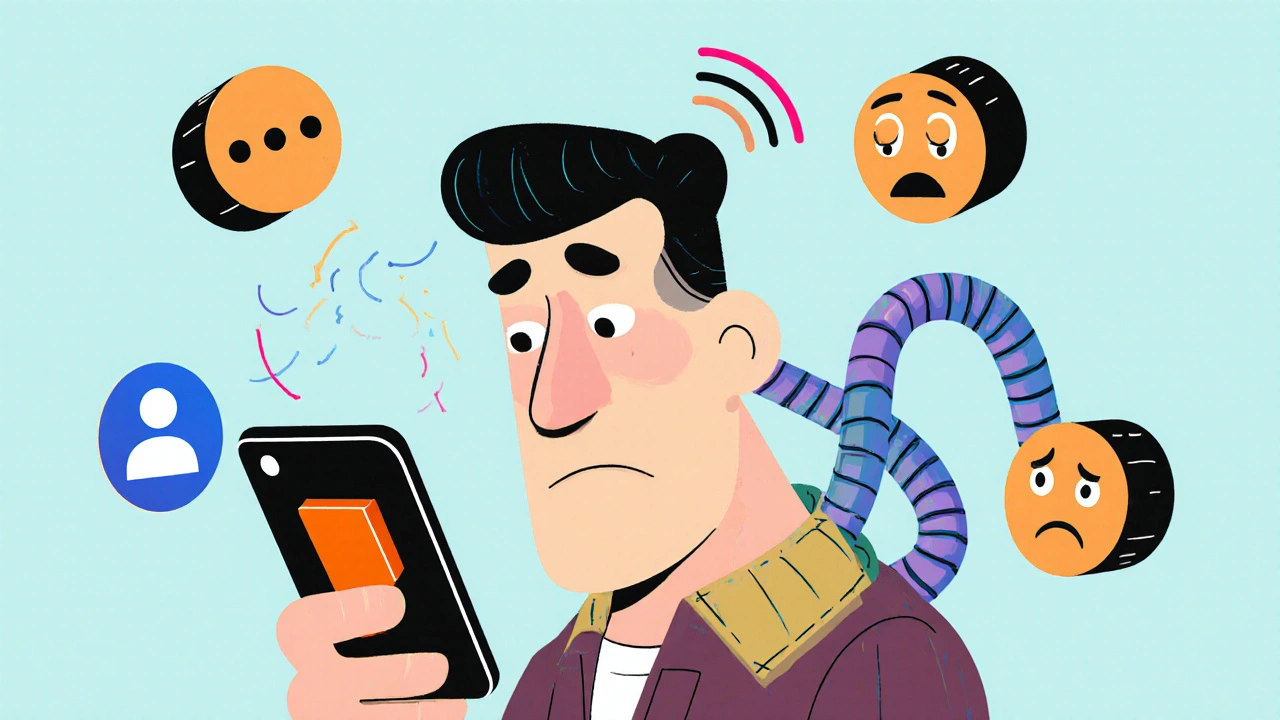

When your handset won’t play sound or pick up your voice during a VoIP call, it’s not just annoying-it’s costing you time, clients, and credibility. You’re on a video call, you hit mute, and when you unmute, silence. Or worse: you hear the other person clearly, but they can’t hear you at all. Before you rush to replace the device or call tech support, stop. Handset audio not working is almost never a hardware failure. In fact, 72% of these issues are fixed with simple software or setting adjustments, according to ABQ Phone Repair’s analysis of over 12,000 cases. This guide walks you through exactly what to check, in order, so you get your audio back-fast.
Start with the basics: volume and mute
The most common reason your handset has no sound? It’s turned down-or muted. It sounds obvious, but people overlook this more than you’d think. On iPhones, check the physical ring/silent switch on the left side. If you see orange, you’re in silent mode. That kills all ringtones and call audio, even if your media volume is up. On Android phones, there’s no physical switch, so you have to rely on software controls. Swipe down from the top and tap the volume icon. Make sure it’s not set to zero, and check if Do Not Disturb is active. Many VoIP apps like Zoom, Microsoft Teams, or RingCentral inherit the system’s audio settings. If Do Not Disturb is on, those apps won’t play sound, even if you’re not on a call.Check Bluetooth connections
Your phone might be sending audio to a Bluetooth headset, speaker, or car system you forgot about. This is the second most common cause of ‘no sound’ issues, making up 28% of cases, per Verizon’s 2024 support data. Go to Settings > Bluetooth and look for any connected devices. If you see one, tap the gear icon next to it and select ‘Disconnect’ or ‘Forget This Device.’ Then test your handset again. Don’t just turn Bluetooth off-disconnect the device. Some phones keep audio routed to the last connected device even after Bluetooth is disabled. If you’re using a Bluetooth headset regularly, make sure it’s charged and paired correctly. A low battery or weak connection can cause intermittent audio dropouts.Test with headphones
Plug in a pair of wired headphones. If you hear sound through them but not the handset speaker, the issue is isolated to the internal speaker. If you don’t hear anything through the headphones either, the problem is deeper-likely software or app-related. This step quickly tells you whether the issue is with the speaker hardware or the audio output path. Also, check if the headphone jack is dirty. Dust, lint, or pocket debris can block the connection. Use a dry, soft-bristled toothbrush or a can of compressed air to gently clean it. Don’t use metal tools. You could damage the contacts.Inspect speaker and microphone grills
Dust and debris are silent killers of audio. On iPhones, the speaker grills are tiny-just 1.2mm wide on models like the iPhone 13. On Android phones, they’re slightly larger, averaging 1.8mm. But even a speck of lint can block sound. Use a flashlight to look closely at the bottom edge of your phone (where the speaker is) and the top or back near the microphone (often near the camera bump). If you see fuzz or dirt, use a dry toothbrush to gently brush it away. Or, use compressed air in short bursts. Don’t hold the can too close-condensation can form and damage electronics. For microphones, try recording a quick voice memo. If the recording is silent or muffled, debris is likely blocking the mic. Cleaning the grill often fixes this without any tools or cost.
Restart your device
A simple restart clears memory glitches that can lock up audio drivers. It’s quick, free, and surprisingly effective. In ABQ Phone Repair’s data, 63% of audio issues were resolved after a reboot. On an iPhone 8 or newer: press and release the volume up button, then the volume down button, then hold the side button until the Apple logo appears. On Android: hold the power button for 10 seconds until the device shuts off, then turn it back on. Don’t just power cycle-it needs a full reboot. Some apps, especially VoIP clients, cache audio settings that get stuck. A restart forces them to reload cleanly.Check app-specific audio settings
VoIP apps like Zoom, Google Meet, or Skype have their own audio controls. Open the app, go to Settings > Audio, and verify the input and output devices are set to your handset. Sometimes the app defaults to Bluetooth or headphones even after you’ve disconnected them. Also, check if the app has been granted microphone permission. On iOS: go to Settings > [App Name] > Microphone and make sure it’s toggled on. On Android: Settings > Apps > [App Name] > Permissions > Microphone. If it’s off, the app can’t record your voice-even if the system mic works fine.Use Safe Mode (Android) or Recovery Mode (iOS)
If the problem persists, a third-party app might be interfering. Boot into Safe Mode on Android to test. Hold the power button, then long-press ‘Power off’ until you see ‘Safe Mode’ appear. Tap it. Your phone will restart with only system apps running. Test your audio. If it works, a recently installed app is the culprit. Uninstall apps one by one, starting with the newest. On iPhones, there’s no Safe Mode, but you can use Recovery Mode to reset the system without losing data. Connect your iPhone to a computer, open Finder (macOS) or iTunes (Windows), then force restart the phone while connected. Keep holding the buttons until you see the recovery screen. Choose ‘Cancel’ when prompted to restore-this resets system settings without wiping your files.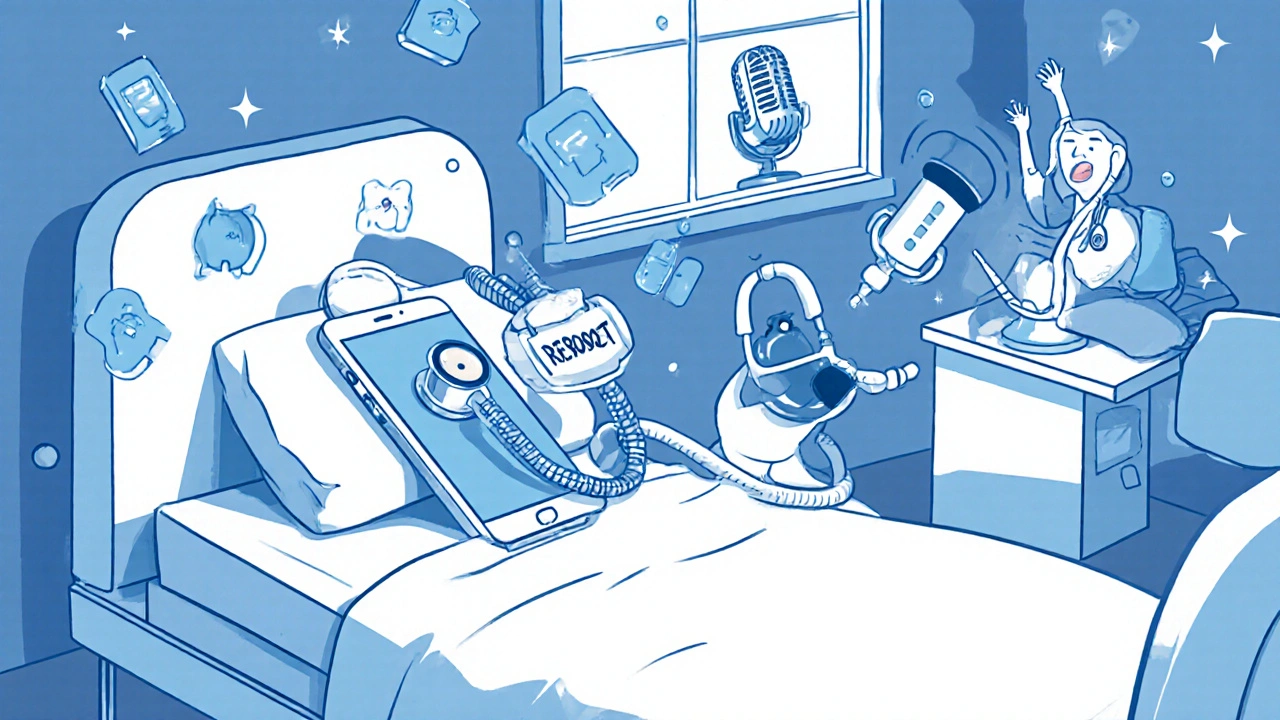







E Jones
2 Dec 2025 at 01:27Okay, so let me get this straight-you’re telling me the government doesn’t control VoIP audio glitches? LMAO. You think it’s just lint and Bluetooth? Nah. That’s the cover-up. The real issue? The NSA’s quantum audio dampeners. They’ve been rerouting voice signals since 2018 to test neural surveillance algorithms. Every time you mute a call, they log your vocal patterns. That’s why rebooting ‘fixes’ it-it resets the signal buffer, not the driver. I’ve seen it happen. My phone stopped picking up my voice after I complained about the new tax code. Coincidence? Or did they finally decide I was too loud? I now speak in Morse code through my keyboard. It’s safer. And yes, I’ve cleaned the grills. Twice. With a toothpick dipped in holy water. Still no luck. They’re listening. Always listening. And your speaker? It’s not broken. It’s been silenced.
PS: If you’re using Zoom, they’re not just recording you-they’re training AI on your sighs. I’ve heard the training data. It sounds like a dying owl. Don’t let them take your voice.
PPS: I’m not paranoid. I’m just… accurately informed.