



If your business relies on VoIP for daily calls, you’ve probably experienced the frustration of dropped calls, robotic voices, or sudden echo during important meetings. These aren’t random glitches-they’re symptoms of network congestion. Without proper QoS configuration, your voice traffic gets treated like any other data: delayed, shuffled, or even dropped when the network gets busy. The good news? You can fix this. With the right setup, you can guarantee crystal-clear calls even during peak hours.
Why VoIP Needs Priority Over Other Traffic
Unlike emails or file downloads, voice calls can’t wait. A video stream might buffer for a second. A spreadsheet can reload without issue. But a 200-millisecond delay in a phone call sounds like a robotic echo. A 300-millisecond delay makes conversation impossible. And if packets get lost, parts of speech vanish entirely. This is why VoIP traffic needs special treatment. Standard routers use a first-in, first-out system-meaning the first packet to arrive gets sent first, no matter what it is. That’s fine for web browsing. It’s disastrous for voice. Without QoS, your sales team’s call with a client gets queued behind a co-worker’s 4K video upload. The result? Lost deals, frustrated customers, and damaged credibility. Industry standards are clear: for acceptable VoIP quality, you need:- Latency under 150 milliseconds
- Jitter under 30 milliseconds
- Packet loss under 1%
How QoS Works: The Traffic Cop for Your Network
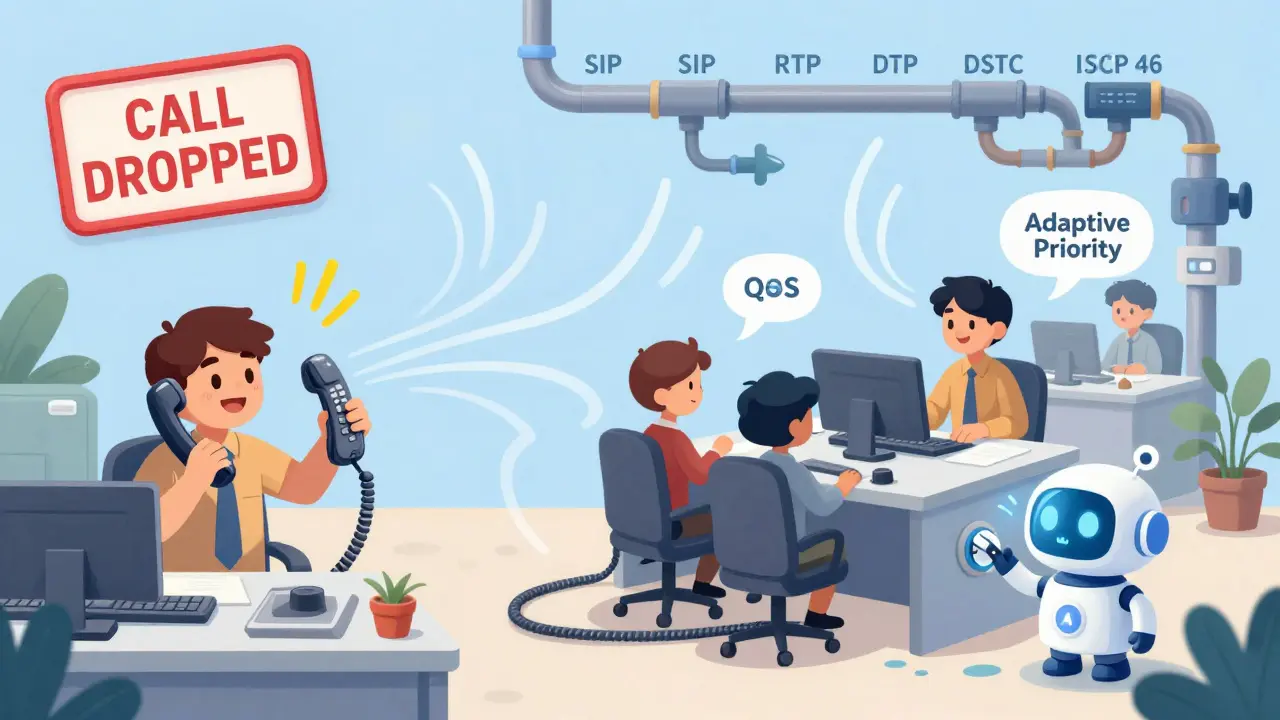
Think of your network as a highway. All traffic-voice, video, email, backups-uses the same lanes. Without QoS, it’s chaos. With QoS, you create express lanes. QoS works by tagging VoIP packets so routers and switches know they’re high priority. The most widely accepted tag is DSCP 46, also called Expedited Forwarding. When a VoIP phone sends a call, it marks the packet with DSCP 46. Your router sees that tag and says, “This is voice traffic. Send it first, no matter what else is waiting.” This isn’t magic. QoS doesn’t create more bandwidth. It just uses what you have smarter. If your internet connection is 100 Mbps but you’re only using 30 Mbps for voice, QoS ensures those voice packets get through cleanly-even if the other 70 Mbps is full of downloads. The key is consistency. Every device on your network-routers, switches, firewalls, even your wireless access points-must recognize and honor DSCP 46. If one device ignores it, your call quality breaks down at that point.Setting Up QoS: The Essential Steps
Configuring QoS doesn’t require a PhD in networking. Here’s how most businesses do it successfully:- Identify VoIP traffic: Look for SIP (ports 5060-5061) and RTP (ports 16384-32767). These are the protocols your VoIP system uses. Most modern routers let you select “VoIP” or “Voice” from a preset list. If not, create a rule based on these ports.
- Mark packets with DSCP 46: This is the golden rule. Your VoIP phones should auto-tag traffic, but verify it. Use a tool like Wireshark to capture a call and check the packet headers. If you see DSCP 46, you’re good. If not, check your phone or PBX settings.
- Assign priority queues: Use Low-Latency Queueing (LLQ) if your equipment supports it. LLQ gives voice traffic its own express lane while still limiting bandwidth for other high-priority traffic like video. Avoid simple priority queues that starve other services.
- Reserve bandwidth: Each VoIP call uses about 80-100 kbps. If you have 20 concurrent calls, reserve at least 2 Mbps. Don’t over-allocate. Reserve 10-20% more than your peak usage to handle spikes.
- Enable QoS on wireless access points: If your team uses cordless VoIP phones or softphones on tablets, your Wi-Fi needs QoS too. Set Per-Client Priority (PCP) to 6 (highest) for voice devices. Don’t forget to mark wireless traffic with DSCP 46 as well.
- Test and monitor: After setup, make test calls during peak hours. Use built-in tools like Cisco’s
show policy-map interfaceor free tools like PingPlotter to check latency and packet loss. If you see spikes above 150ms or 1% loss, revisit your rules.

What Happens If You Don’t Do This?
Many businesses wait until calls start failing to act. That’s too late. A healthcare provider in Wisconsin saw emergency call failures hit 14% during lunch rushes-until they implemented QoS. After tagging VoIP traffic with DSCP 46 and reserving bandwidth, failures dropped to 0.3%. That’s not just convenience. That’s safety. On the flip side, a manufacturing company in Ohio tried to prioritize VoIP but accidentally gave it 80% of the bandwidth. Their machine monitoring systems, which used the same network, started timing out. Production halted. They had to reconfigure everything. QoS isn’t about giving voice everything. It’s about giving voice what it needs-no more, no less.Auto-QoS vs. Manual Setup: Which Should You Choose?
Some routers, like Cisco Meraki, offer Auto-QoS. With one click, it detects VoIP traffic, applies DSCP 46, and sets up priority queues. It’s perfect for small businesses with under 10 users. Setup takes 15 minutes. For larger networks with complex traffic patterns, manual setup is better. You can fine-tune bandwidth limits, exclude certain apps from priority, or create separate queues for video conferencing. But it’s more work. Cisco IOS devices might require 15 commands. Mistakes here can cause more problems than they fix. If you’re unsure, start with Auto-QoS. If your call quality improves and you’re happy, stop there. If you need more control later, you can always switch to manual.Common Mistakes and How to Avoid Them
Most failed QoS setups aren’t due to technical limits-they’re due to simple oversights:- Misidentifying traffic: Some apps use the same ports as VoIP. Always verify with packet captures. Don’t assume your phone’s default settings are correct.
- Forgetting wireless: If your VoIP phones connect via Wi-Fi, your router’s QoS settings won’t help if your access point ignores them. Configure QoS on your APs too.
- Over-allocating bandwidth: Giving voice 50% of your bandwidth might seem safe, but it starves critical business apps. Stick to 100 kbps per call plus 20% buffer.
- Not testing under load: Test during your busiest time-lunch hour, end of day, payroll week. QoS only matters when the network is stressed.
- Ignoring vendor differences: Not all routers handle DSCP the same. Some strip the tag. Check your device’s documentation. Cisco, Juniper, and Meraki handle it well. Cheap consumer routers? Often don’t.
Is QoS Still Relevant with Cloud VoIP?
You might hear that cloud VoIP services like Zoom or Microsoft Teams don’t need QoS because they’re hosted externally. That’s misleading. Yes, the cloud provider handles their end. But your internal network still carries the traffic to and from your internet connection. If your office network is congested, your calls will still suffer. QoS ensures your local network doesn’t become the bottleneck. Even if you use WebRTC in a browser, your home or office router still needs to prioritize voice packets. The only difference? You’re now managing traffic across both your internal network and the public internet. QoS still matters on your side.Real Results: What Businesses Are Seeing
In a Reddit thread with 147 responses from network admins, 89% said QoS fixed their VoIP problems. One user went from 22% dropped calls to 1.7% after applying DSCP 46 on their Ubiquiti router. G2 Crowd users rate QoS features at 4.3 out of 5. The most common praise? “No more echo.” “Calls don’t cut out during Zoom meetings.” “Finally, our customer service sounds professional.” And the numbers back it up. Cisco’s 2025 technical bulletin found that properly configured QoS reduces VoIP call failures by 83% during peak network usage. Gartner’s Dr. Elizabeth Chen says enterprises without QoS have a 68% higher risk of communication failure during critical operations. This isn’t optional for businesses that rely on voice. It’s infrastructure.What Comes Next: AI and the Future of QoS
The next wave of QoS is smarter. Cisco’s new AI Network Analytics can detect congestion patterns and adjust VoIP priority in real time. If a video call suddenly spikes, the system automatically tweaks bandwidth allocation to protect voice. The IETF is also working on Adaptive DSCP Marking (RFC 9540), which lets devices dynamically change their priority tags based on network conditions. Imagine your phone saying, “Network’s busy-lower my priority slightly so the emergency call gets through.” By 2027, Gartner predicts 65% of enterprises will use AI-assisted QoS. Manual configuration will become rare. But for now, the fundamentals haven’t changed. Tag your voice traffic. Give it priority. Test it. Monitor it. And don’t forget: QoS doesn’t fix a slow internet connection. It just makes the best of what you have.Do I need QoS if I have a fast internet connection?
Yes-even with fast internet, internal network congestion can still hurt call quality. If multiple users are streaming, backing up files, or downloading large updates, your router’s internal queues can back up. QoS ensures voice packets jump ahead of those delays. Speed matters, but priority matters more.
Can I use QoS on my home router?
Some high-end consumer routers (like ASUS, Netgear Nighthawk, or Ubiquiti) support basic QoS. Look for “Voice Priority,” “Game Mode,” or “Traffic Control” settings. You can manually set UDP ports 5060-5061 and 16384-32767 as high priority. But don’t expect enterprise-level control. For home use, it’s enough to fix occasional echo or lag.
What’s the difference between DSCP 46 and 802.1p?
DSCP 46 works at the IP layer and is recognized by routers, firewalls, and switches across different vendors. 802.1p works only on local network segments (like between your switch and your phone). If your traffic crosses the internet or different network segments, 802.1p tags are often stripped. DSCP 46 survives the journey. For any business with mixed networks, DSCP 46 is the only reliable choice.
How much bandwidth should I reserve for VoIP?
Plan for 100 kbps per concurrent call. For 10 calls, reserve 1 Mbps. Add 20% extra for overhead and spikes. So for 10 calls, aim for 1.2 Mbps. Most modern codecs (like G.722 or Opus) use even less-around 60-80 kbps-but always plan for the worst case. Don’t forget to account for SIP signaling (5-10 kbps per call) too.
Will QoS help if my internet is slow?
No. QoS manages traffic within your available bandwidth. If your internet connection is only 5 Mbps and you’re trying to run 20 VoIP calls, 5 video meetings, and file backups, QoS can’t create more speed. It can only make sure your calls get the best shot at the limited bandwidth. If your internet is too slow, upgrade it first. Then use QoS to protect your voice traffic.









Tasha Hernandez
17 Dec 2025 at 02:56Oh wow, another ‘QoS fixes everything’ sermon. Let me grab my tin foil hat and my Wireshark license because apparently, if you tag your packets with DSCP 46, your CEO won’t scream during Zoom calls anymore. I’ve seen this play out in three companies - all ended up with routers that couldn’t handle the load, and the IT guy got fired after ‘fixing’ VoIP by disabling Netflix. You didn’t mention that most SMBs are running on TP-Link garbage that strips DSCP tags like it’s a bad habit. And yes, I’ve personally watched a call drop because someone downloaded a 10GB patch while on a client call. QoS doesn’t fix bad hardware. It just makes you feel better while your phone still sounds like a robot having a panic attack.