Handset Audio Not Working? Fix VoIP Call Audio Issues Now
When your handset audio not working, a common VoIP problem where voice doesn’t transmit or receive properly on physical or software phones. Also known as one-way audio, it’s not magic—it’s usually a misconfigured network, wrong codec, or broken audio path. You pick up the phone, hear silence, or the other person can’t hear you—even though your internet is fine. This isn’t rare. It happens to businesses using SIP phones, home users with softphones, and remote teams on Zoom or Teams. The fix isn’t always complex, but it needs the right focus.
Most VoIP audio issues, problems with sound transmission in internet-based phone systems. Also known as call audio dropouts, it trace back to three things: port settings, audio routing, or device configuration. If you’re using a physical IP phone, check if the headset jack is plugged in correctly—or if the phone’s internal speaker is muted. For softphones like Zoiper or MicroSIP, your computer’s audio output might be set to the wrong device. Windows or macOS sometimes switches audio to Bluetooth headphones or HDMI output after a reboot. Open your system sound settings and confirm the right output is selected. No need to reinstall anything—just double-check the basics.
Then there’s the network. SIP phone audio, the voice stream carried over IP networks using SIP protocols. Also known as RTP audio, it needs open ports. If your router blocks RTP traffic (usually ports 10000–20000), calls work but you hear nothing. Port forwarding fixes this. You also need WMM enabled on your Wi-Fi router. Without it, your voice packets get lost in the same queue as your video stream or file downloads. That’s why calls crackle on Wi-Fi but work fine on Ethernet. And if you’re using a VPN, make sure it’s not forcing all traffic through a slow server—VoIP needs low latency, not just encryption.
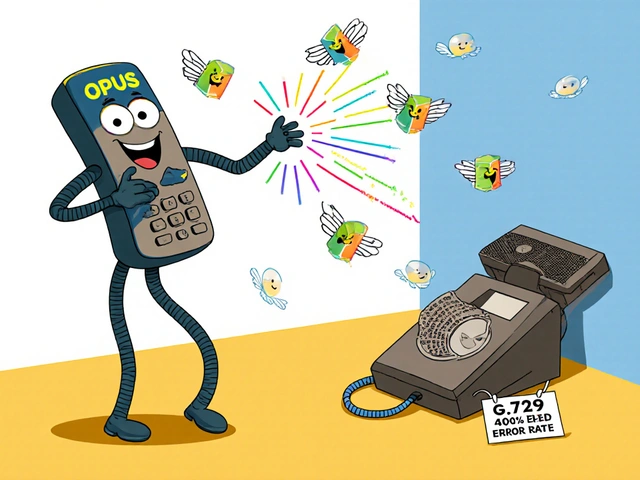
Codec mismatches are another silent killer. Your phone might be trying to use G.729, but your provider only supports G.711. The call connects, but audio never passes through. Most modern systems auto-negotiate, but older setups don’t. Check your PBX or VoIP provider’s recommended codecs. If you’re recording calls and only hearing one side, it’s likely stereo routing—Zoom and Teams sometimes send audio as two separate channels. Use tools like OBS or Audio Hijack to capture both.
Hardware fails too. A cracked headphone jack, a worn-out speaker, or a faulty Ethernet cable can kill audio. Swap the phone with another one. Try a different cable. Plug into a different port. If the problem moves with the device, it’s the phone. If it stays with the port or network, it’s the setup. No guesswork needed.
Below, you’ll find real fixes from users who’ve been there. From configuring port forwarding to fixing stereo audio in recording apps, these posts cover every angle of handset audio not working. No theory. No fluff. Just what actually works.

Fix your handset audio issues fast with this step-by-step guide for VoIP users. Learn how to troubleshoot silent speakers, dead microphones, and Bluetooth conflicts without replacing your device.