



Getting clear, reliable phone calls over the internet isn’t just about having fast internet-it’s about how your router handles voice traffic. If your VoIP calls are choppy, drop out, or only work one way, the problem isn’t your phone. It’s your router. Most people assume that if their internet speed is good, VoIP will work fine. But that’s not true. A 500 Mbps connection won’t save you if your router is drowning voice packets in a sea of video streams and downloads. The fix? Proper VoIP router configuration with focused network settings and Quality of Service (QoS).
Why Your Router Needs Special VoIP Settings
VoIP turns your voice into digital packets that travel over the same network as your emails, Netflix, and file backups. Unlike those other tasks, voice calls can’t wait. A 200ms delay in a webpage load? Annoying. A 200ms delay in a phone call? Unusable. That’s why routers need to treat voice traffic differently. Without special settings, your router treats all data equally. When someone starts streaming 4K video or downloading a large file, your VoIP calls get pushed to the back of the line. The result? Jitter (uneven delays), packet loss (missing voice fragments), and latency (lag). The ITU says voice quality should hit a Mean Opinion Score (MOS) of 4.0 or higher. You won’t get there unless your router prioritizes voice packets.Bandwidth: How Much Do You Really Need?
You don’t need gigabit internet for VoIP, but you do need enough consistent bandwidth. Each active call needs at least 100 kbps in both upload and download directions. That’s not much-but it adds up fast. - G.711 codec (highest quality): 87.2 kbps per direction - G.729 codec (compressed, good for low bandwidth): 31.2 kbps per direction If you have five people on calls at once using G.711, you need at least 500 kbps upload and 500 kbps download just for voice. That doesn’t include background traffic. Most ISPs advertise download speeds, but VoIP depends heavily on upload speed-which is often much slower. A 100/20 Mbps connection might seem fine, but if your upload is only 20 Mbps and you’re already using 15 Mbps for cloud backups, you’ve got no room for calls. Run a speed test during your busiest work hours. Look at upload speed, latency, jitter, and packet loss. If packet loss is above 1% or jitter is over 30ms, your network isn’t ready for VoIP-even if your speed looks good.Port Configuration: SIP and RTP Explained
VoIP uses two main protocols: SIP for setting up calls, and RTP for carrying the actual voice. - SIP (Session Initiation Protocol) uses UDP ports 5060 or 5061 (for encrypted TLS connections). This is how your phone tells the system, “I’m calling John.” - RTP (Real-time Transport Protocol) uses a range of UDP ports, usually between 10,000 and 20,000. This is where your voice data actually flows. Your router’s firewall blocks these ports by default. If you don’t open them, calls won’t connect-or you’ll get one-way audio (you can hear them, but they can’t hear you). Some routers have a feature called SIP ALG (Application Layer Gateway) that’s supposed to help. But here’s the catch: SIP ALG is broken in most consumer routers. According to WhichVoIP’s 2022 analysis, 68% of one-way audio problems were fixed by simply turning SIP ALG off. Don’t enable SIP ALG. Disable it. Always. If your provider gives you specific SIP server addresses (likesip.state.iinet.net.au for iiNet), use those. Don’t guess. If your phone shows “Registration Failed” or “Not Registered,” it’s usually because the SIP server, username, or password is wrong. Double-check the details your VoIP provider gave you.
QoS: Giving Voice Traffic Priority
This is the single most important setting. QoS lets you tell your router: “Voice packets come first.” Most routers let you set QoS rules based on: - DSCP values (Differentiated Services Code Point): These are tags in the packet header that say “this is voice.” - Voice traffic: DSCP 46 (EF - Expedited Forwarding) - SIP signaling: DSCP 26 (AF31 - Assured Forwarding) - Port numbers: Prioritize UDP ports 5060-5070 (SIP) and 10,000-20,000 (RTP) - Device MAC addresses: If you’re using dedicated VoIP phones, prioritize their MAC addresses. This is better than IP-based rules because IP addresses can change, but MAC addresses don’t. Set your QoS to give these packets the highest priority. On consumer routers like TP-Link or Netgear, look for “Voice,” “VoIP,” or “Application Priority” in the QoS section. On business routers like Ubiquiti or Cisco, you can assign strict priority queues so voice traffic skips ahead of everything else. Don’t just turn on QoS and call it done. Test it. Make a call while someone else downloads a 2GB file. If your voice stutters, your QoS isn’t working right.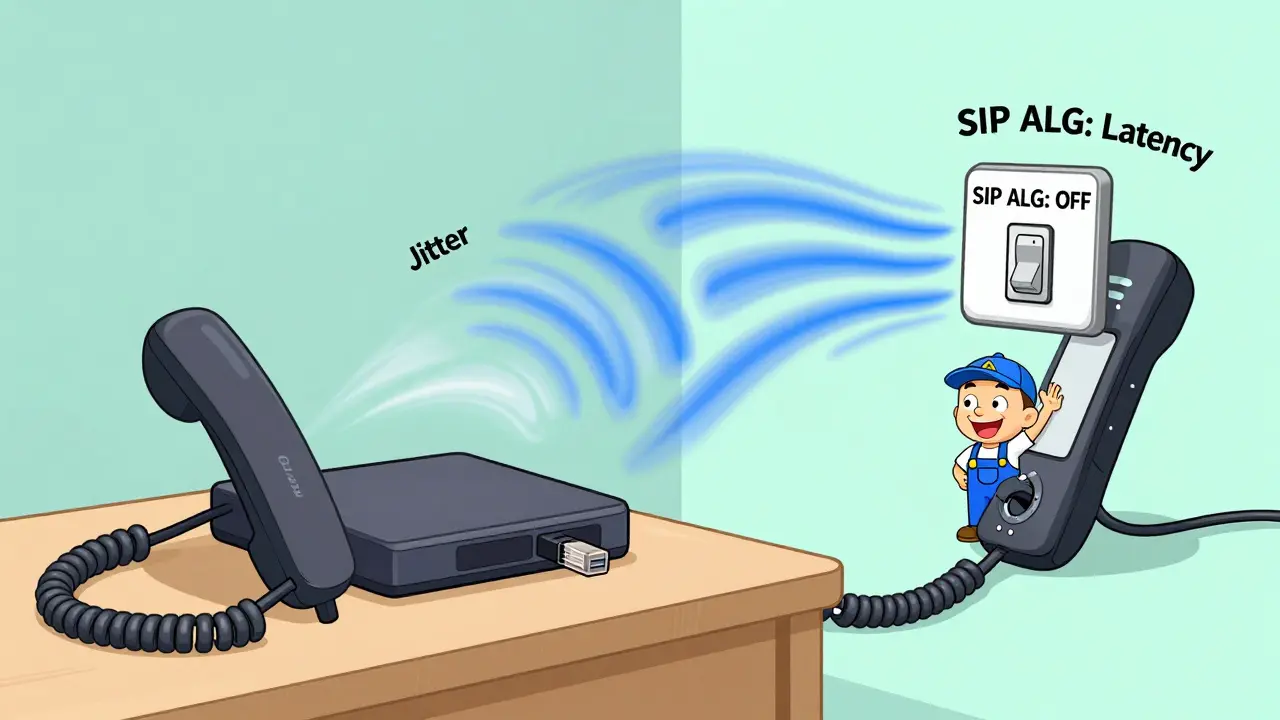
VLAN Segmentation: The Pro Move
If you’re running VoIP in a business, or you want enterprise-grade reliability, use VLANs. A VLAN is like creating a separate, private highway inside your network just for voice traffic. Industry best practice: Assign VoIP devices to VLAN 200. Your computers, printers, and smart TVs stay on VLAN 1. This prevents any data traffic from interfering with calls-even if someone floods the network with torrents. Routers like the Ubiquiti UDM Pro and Cisco business models support VLAN tagging. You’ll need to configure your VoIP phones or ATA adapters to tag their traffic with VLAN 200. Your switch (if you have one) must also support VLANs. Gartner’s 2023 report found that companies using dedicated voice VLANs saw a 70% reduction in call quality issues. It’s not just about performance-it’s about predictability.Wired vs. Wi-Fi for VoIP Phones
You might think a Wi-Fi VoIP phone is convenient. It’s not. Wi-Fi is shared, prone to interference, and unpredictable. Even with the best router, Wi-Fi adds jitter and latency that wired connections don’t. Nextiva’s network engineers recommend: Always connect VoIP phones via Ethernet. If you’re using a desk phone, plug it in. If you’re using a softphone on a laptop, use a USB-to-Ethernet adapter. If you must use Wi-Fi, ensure the device is within 5 feet of the router and on the 5 GHz band. But even then, it’s risky. A 2023 case study from a mid-sized law firm showed that switching from Wi-Fi to wired VoIP phones dropped dropped calls from 12% to under 1%. The difference wasn’t just in call quality-it was in productivity.Common Mistakes and How to Fix Them
Here’s what most people get wrong:- Enabling SIP ALG → Turn it OFF. Always.
- Ignoring upload speed → Test it. If it’s under 100 kbps per call, upgrade your plan.
- Using IP-based QoS rules → Use MAC addresses instead. IPs change; MACs don’t.
- Not testing under load → Run a speed test while downloading a big file. If jitter spikes, your QoS isn’t working.
- Assuming default settings are enough → Consumer routers ship with generic settings. You must optimize them.

Provider-Specific Requirements
Your VoIP provider (like Lumen, Nextiva, or RingCentral) may have unique settings. Some require specific IP addresses for their Session Border Controllers (SBCs). Others require TLS encryption on port 5061. Always get their configuration guide. For example, Lumen’s 2023 guide requires you to open ports for two-way communication between your phones and their SBCs. If your router blocks outbound traffic on certain ports, calls won’t connect-even if everything else is perfect. Don’t guess. Ask your provider: “What ports, protocols, and IP addresses do I need to allow in my router?” Write it down.Final Checklist Before Going Live
Before you switch your office or home to VoIP, run through this:- Run a speed test during peak hours. Confirm upload speed is at least 100 kbps per concurrent call.
- Check latency (should be under 150ms), jitter (under 30ms), packet loss (under 1%).
- Disable SIP ALG in your router settings.
- Set QoS to prioritize DSCP 46 (voice) and DSCP 26 (SIP signaling).
- Open UDP ports 5060-5070 and 10,000-20,000 (or use provider-specific ports).
- Connect VoIP phones via Ethernet, not Wi-Fi.
- Use MAC-based QoS rules instead of IP-based.
- Test calls while someone else streams video or downloads files.
- Verify registration status on your phone shows “UP” or “Registered.”
What If It Still Doesn’t Work?
If you’ve done all this and calls are still dropping or cutting out: - Try a different router. Consumer models like Netgear or TP-Link often have poorly implemented QoS. Upgrade to a business-grade router like Ubiquiti UDM Pro or a Cisco model. - Check for firmware updates. Outdated firmware can break VoIP features. - Contact your VoIP provider’s tech support. They can check if their servers are seeing your registration attempts. - Consider a dedicated VoIP router or SBC. Some providers offer these as part of their service. VoIP isn’t magic. It’s networking. And networking requires attention to detail. When done right, it’s cheaper, clearer, and more flexible than landlines. When done wrong, it’s worse than no phone at all.Don’t settle for “it works sometimes.” Optimize it. Your calls deserve better.
Do I need a special router for VoIP?
You don’t need a "VoIP router," but you do need a router that lets you disable SIP ALG, set QoS rules, and open custom ports. Most consumer routers can do this, but many make it hard to find. Business-grade routers like Ubiquiti, Cisco, or Fortinet make it easier and more reliable.
Can I use VoIP over Wi-Fi?
Technically yes, but it’s not recommended. Wi-Fi introduces unpredictable delays and interference. Even with strong signal strength, you’ll get more jitter and dropped calls than with a wired connection. For business use, always connect VoIP phones via Ethernet.
Why does my VoIP call work one way?
One-way audio is almost always caused by SIP ALG being enabled on your router. Disable it immediately. Other causes include blocked RTP ports or a firewall blocking incoming voice traffic. Check your port settings and ensure UDP ports 10,000-20,000 are open.
How many VoIP calls can my router handle?
It depends on your upload speed. Each call needs at least 100 kbps upload. So a router with 1 Mbps upload can handle 10 calls. But you also need to account for other traffic. For reliability, leave 20% headroom. So if you have 1.5 Mbps upload, plan for max 12 calls.
Should I use G.711 or G.729 codec?
Use G.711 if you have enough bandwidth-it sounds better. Use G.729 if you’re on a slower connection or have many concurrent calls. G.729 uses less than half the bandwidth and still sounds clear enough for business use. Most providers default to G.729 for this reason.
Is QoS really necessary if my internet is fast?
Yes. Speed isn’t the issue-consistency is. Even on a 1 Gbps connection, if your router doesn’t prioritize voice packets, a single video stream can cause call drops. QoS ensures voice always gets through, no matter what else is happening on the network.
What’s the best router for VoIP in 2025?
For home or small business: Ubiquiti UDM Pro offers excellent QoS, VLAN support, and a clean interface. For larger offices: Cisco ISR or Meraki routers with enterprise-grade traffic shaping. Avoid cheap routers from unknown brands-they often have broken SIP ALG or no QoS at all.









Dmitriy Fedoseff
18 Dec 2025 at 03:26Yo, this post is spot on but let me tell you something real - I’ve seen so many small businesses in Toronto waste thousands on fancy VoIP phones while their router has SIP ALG turned ON. I fixed one last week. Turned off SIP ALG, set QoS to prioritize DSCP 46, plugged the phones into Ethernet, and suddenly calls were crystal clear. No magic. Just networking. Also, stop using Wi-Fi for phones. It’s 2025, not 2008.