

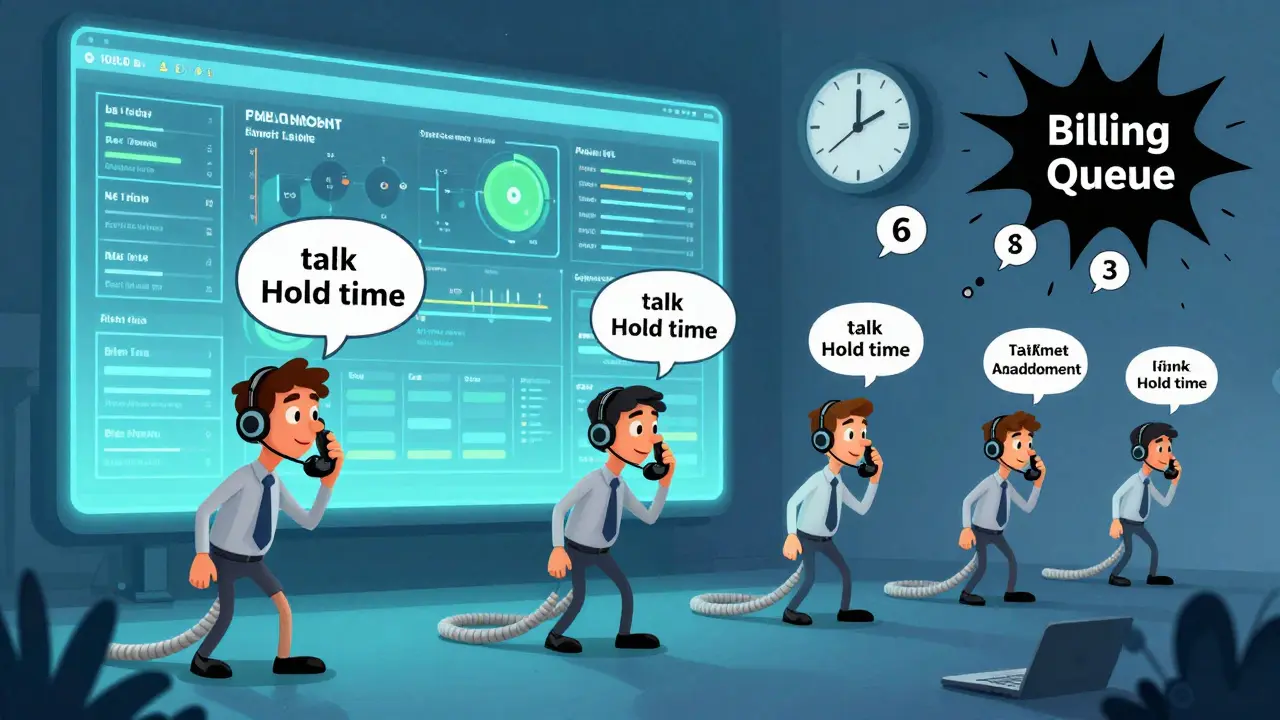

When your VoIP system handles hundreds of calls a day, you can't afford to guess who’s performing well or where delays are happening. Power BI dashboards for VoIP turn raw call data into clear, real-time visuals that show exactly where your team is excelling-and where it’s struggling. No more spreadsheets. No more delays. Just actionable insights at a glance.
What You Actually Need to Track
Most call centers track the same core metrics, but they often miss the bigger picture. Talking time alone doesn’t tell you if agents are resolving issues efficiently. High call abandonment rates? That’s not just about long hold times-it could mean understaffing during peak hours or poor routing. Here’s what matters:- Talk time: How long agents spend on each call. Too short? They might be rushing. Too long? Maybe they lack training or tools.
- Hold time: Time callers wait before being connected. Consistently over 90 seconds? You’ve got a bottleneck.
- ACW (After Call Work): Time agents spend logging calls, updating records, or handling follow-ups. If ACW is high, it’s eating into available handle time.
- Call abandonment rate: Percentage of calls dropped before an agent answers. Above 5%? That’s a red flag.
- First-call resolution: Are customers getting help the first time? This impacts satisfaction and repeat calls.
- Agent utilization: Are agents busy, or are they sitting idle? Balance is key.
These numbers aren’t just for managers. Frontline supervisors need them too. And executives? They just want to know: Are we improving, or are we falling behind?
How Power BI Connects to Your VoIP System
Power BI doesn’t magically pull data out of thin air. It connects to your VoIP provider’s database. Most modern VoIP systems-like 3CX, Yeastar VBX, or even Microsoft Teams Phone-store call records in SQL Server databases. That’s your gateway.Here’s how it works:
- Your VoIP system logs every call: who called, when, how long, which agent handled it, and whether it was abandoned.
- That data lives in a SQL table-usually called CallDetailRecords or something similar.
- Power BI Desktop connects directly to that database using standard SQL authentication or JSON Web Tokens (JWT) if your system uses API-based access.
- Once connected, Power BI imports the raw data and lets you build relationships between tables: calls, agents, departments, dates.
You don’t need to be a database expert. Power BI’s Power Query editor lets you clean data with drag-and-drop tools. Need to fix time formats? Remove duplicates? Merge data from two sources? It’s all possible without writing a single line of code.
Building the Dashboard: From Data to Insights
Once your data is clean, it’s time to build. Start with a clean canvas. No need to overcomplicate it. Here’s what each section should do:1. The Global View
This is your command center. One glance tells you how the whole operation is doing.
- KPI cards: Big, bold numbers for total calls, abandonment rate, average talk time, and ACW time.
- Time-series line chart: Shows daily or hourly trends. Is abandonment spiking every Tuesday at 10 a.m.? That’s your clue.
- Slicers: Filters for date range, department, agent group. Click a month, and everything updates instantly.
2. Agent Performance Breakdown
Not all agents are the same. Some handle 50 calls an hour. Others struggle to hit 20. Why?
Use a clustered column chart to compare:
- Calls handled per agent
- Average talk time
- ACW time
- Abandonment rate tied to their calls
Color-code the results. Green = above target. Red = below. You’ll instantly see who needs coaching-and who’s a star.
3. Time-Interval Drill-Through
Why did abandonment spike last Friday? Click on the high point in your chart. Power BI takes you to a deeper page showing every call from that hour. You’ll see which agents were on duty, how many calls they handled, and whether the queue backed up.
This is where Power BI shines. It’s not a static report. It’s an exploration tool.
4. Department Efficiency
Is Sales getting 3x more calls than Support? Are they resolving them faster? Use a treemap to show call volume and average handle time side by side by department. Suddenly, you see that Marketing’s voicemail system is sending 80% of calls to the wrong team.

Why Power BI Over Other Tools?
You could use Tableau or Qlik. But if your company already uses Microsoft Teams, Outlook, or Azure, Power BI fits like a glove.- Cost: Power BI Pro is $10/user/month. Specialized contact center analytics tools cost $50-$100/user/month.
- Integration: Embed your dashboard directly into Teams. Teams users can click on a call metric and start a chat about it-no switching apps.
- Templates: 3CX and other providers offer free, pre-built Power BI templates. You download, connect, and go.
- Flexibility: Need to add a custom metric? Write a DAX formula. No vendor lock-in.
Companies using Power BI for VoIP analytics report a 25-40% reduction in average handle time within 60 days of rollout. Why? Because visibility changes behavior.
Data Matters More Than the Dashboard
A beautiful dashboard with bad data is worse than no dashboard at all. Here’s what to check before you build:- Are agent IDs consistent? One agent might be listed as “JohnD” in one table and “John D.” in another. Clean that up.
- Are timestamps in the same time zone? If some calls come from remote workers, mismatched time zones will skew your hourly trends.
- Is ACW time being recorded? Some systems don’t log it by default. You’ll need to enable it in your VoIP settings.
- Are abandoned calls being tagged correctly? If a caller hangs up during voicemail, is it marked as abandoned-or as a completed call?
Use Power Query to validate. Filter for null values. Check for duplicates. Run a quick count: How many calls have a talk time of 0 seconds? That’s a data glitch. Fix it before you visualize.

Putting It All Together: Real-World Example
A small B2B company in Madison had 18 agents handling inbound sales calls. Their abandonment rate was 8.2%-way above the 3% industry benchmark. They assumed it was staffing. Their Power BI dashboard showed something else: abandonment spiked every day between 10:30 a.m. and 11:30 a.m. And guess what? That’s when the billing team started their daily call queue. Their internal transfer system was dropping 60% of those calls before they reached sales. They fixed the routing logic in their VoIP system. Abandonment dropped to 2.1% in two weeks. No extra hires needed.Next Steps: Getting Started
If you’re ready to build your own:- Identify your top 3 KPIs. Don’t try to track everything.
- Find your VoIP system’s database connection details. Ask your IT team or check your provider’s docs.
- Download the free Power BI template for your VoIP system (3CX, Yeastar, etc.).
- Connect it. Clean the data. Build the KPI cards and one line chart.
- Share it with your team. Get feedback. Then add the next layer.
You don’t need a data scientist. You just need a clear question: What do we need to know right now? Answer that, and the dashboard writes itself.
What’s Next?
The future of VoIP analytics isn’t just dashboards. It’s AI that flags anomalies-like an agent suddenly taking 50% longer on calls. It’s mobile alerts that ping supervisors when abandonment rises. It’s integration with workforce scheduling so you auto-staff during predicted peaks. But right now? Start simple. Build one dashboard. Track one metric. Fix one problem. Then build again.Power BI doesn’t make you smarter. It just shows you what you already knew-before it became a crisis.
Can I use Power BI with any VoIP system?
Yes, as long as your VoIP provider stores call data in a database you can connect to-like SQL Server, MySQL, or via API. Systems like 3CX, Yeastar, and Microsoft Teams Phone have built-in support. If your system doesn’t offer direct access, you may need to export call logs as CSV and import them manually, but that won’t update in real time.
Do I need to know how to write DAX formulas?
Not at all. Pre-built templates handle common KPIs like average talk time and abandonment rate. But if you want to create custom metrics-like “calls resolved within 3 minutes”-you’ll need a simple DAX formula. Microsoft offers free beginner guides. You can copy and paste examples. No coding experience needed.
How often does the dashboard update?
You set the refresh schedule. Most teams set it to update every 15 minutes, hourly, or daily. Power BI Service (cloud version) handles this automatically. If you’re using Power BI Desktop only, you’ll need to manually refresh. For real-time monitoring, connect to a live data source like SQL Server-this gives you near-instant updates without scheduled refreshes.
Can I share the dashboard with agents who don’t have Power BI licenses?
Yes. Once you publish the dashboard to Power BI Service, you can share it with anyone in your organization-even those without a Pro license. They’ll view it in a browser or the Power BI mobile app. They can filter and drill down, but they can’t edit the report. Only editors need licenses.
Is it worth building this myself, or should I hire someone?
If you’re comfortable with Excel and have access to your VoIP data, you can build it in 3-4 hours using free templates. Many small businesses do it themselves. If you have complex data sources, multiple systems, or need custom automation, hiring a Power BI consultant for a day is cheaper than paying for a commercial analytics platform long-term.









Lauren Saunders
22 Feb 2026 at 10:44Look, I get the enthusiasm for Power BI-but let’s be real. This whole thing reads like a sales pitch disguised as a tutorial. You’re acting like dashboards are some revolutionary breakthrough when any halfway competent call center has been using Splunk or Datadog for years. And don’t even get me started on ‘free templates.’ Those are just pre-built garbage with hardcoded column names that break the second you rename an agent. Real analytics requires custom pipelines, not drag-and-drop magic. Also, why are we still using ‘ACW’? It’s After Call Work, not ‘After Call Witchcraft.’ Please.
And yes, I’ve seen the 25-40% improvement claims. They’re from the same vendor who also says their VoIP system ‘reduces stress by 73%.’ Data doesn’t lie, but people who cite it absolutely do.