Speaker Not Working? Fix VoIP Audio Issues Fast
When your speaker not working, a common problem in VoIP systems where audio output fails during calls. Also known as no sound on VoIP, it’s not always a hardware issue—it’s often caused by misconfigured software, network settings, or audio routing conflicts. You’re not alone. Thousands of remote workers and small businesses face this daily, especially when switching from landlines to cloud-based phone systems.
VoIP audio issues, problems with sound quality or complete loss of audio in internet-based phone calls usually come down to three things: your device settings, your network, or the app you’re using. If your speaker works fine for videos or music but fails during calls, the problem is likely in your softphone audio, the audio output handled by VoIP software like Zoiper, MicroSIP, or RingCentral. Many users accidentally set the wrong output device in their softphone—like selecting headphones instead of built-in speakers—or they’re using stereo routing that blocks one side of the audio, as seen in Zoom and Teams recordings.
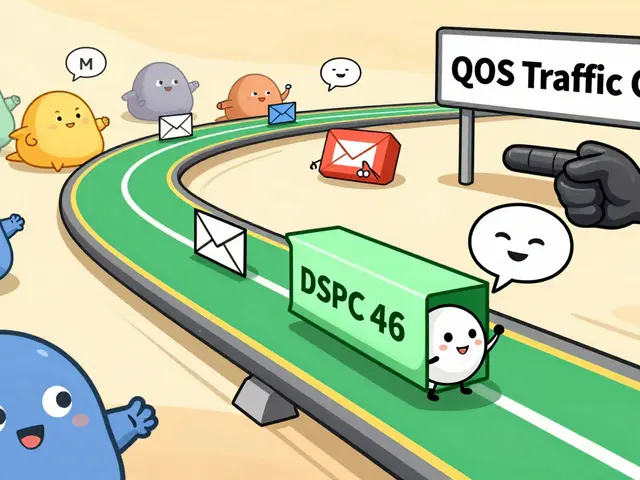
Network problems can also kill your speaker output. Even if your internet is fast, SIP audio problems, issues with voice packets failing to reach the device due to firewall, NAT, or port blocking can cause one-way audio or silence. Port forwarding errors, missing RTP ports, or QoS settings that don’t prioritize voice traffic (like not enabling WMM on your Wi-Fi) can drop audio packets before they reach your speaker. And if you’re using a VPN for VoIP, it might be encrypting traffic too aggressively, causing delays or packet loss that breaks audio streams.
Hardware isn’t always the culprit. Sometimes your speaker is fine, but your OS or driver is misconfigured. Windows and macOS often reset audio devices after updates. Check your system’s sound settings—not just the volume, but the default output device. Plug in headphones to test if audio works there. If it does, your main speaker might be disabled or damaged. If not, the issue is deeper—likely in the VoIP app or network.
And don’t overlook codec mismatches. If your VoIP provider uses G.729 but your device expects OPUS, the audio might decode correctly but never reach your speaker due to incompatible routing. Transcoding can help, but only if your system supports it. Some cheap IP phones and free softphones skip this step entirely, leaving you with silence.
What you’ll find below are real fixes from users who’ve been there. We’ve pulled together guides that tackle speaker problems from every angle: from checking your softphone’s audio output settings to fixing port forwarding for RTP streams, from disabling stereo routing in call recording tools to ensuring WMM is active on your Wi-Fi. Whether you’re a remote worker, a sales team using click-to-call, or a small business running a cloud PBX, these posts give you step-by-step solutions—not theory, not fluff, just what works.

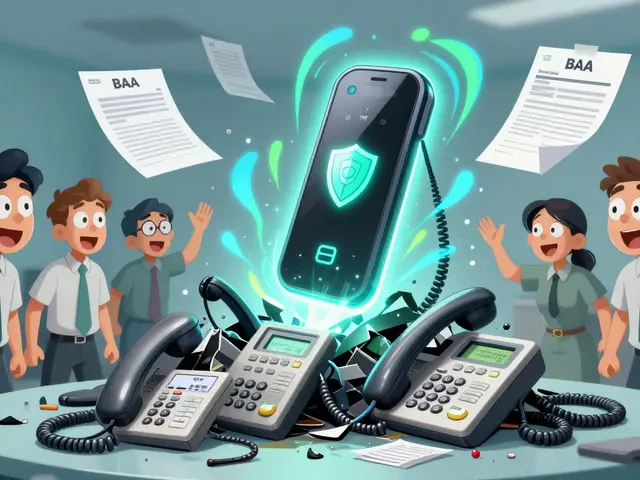
Fix your handset audio issues fast with this step-by-step guide for VoIP users. Learn how to troubleshoot silent speakers, dead microphones, and Bluetooth conflicts without replacing your device.